

--upgrade-db flag or with a dump.
If you’re updating your Meilisearch instance on cloud platforms like DigitalOcean or AWS, ensure that you can connect to your cloud instance via SSH. Depending on the user you are connecting with (root, admin, etc.), you may need to prefix some commands with sudo.
If migrating to the latest version of Meilisearch will cause you to skip multiple versions, this may require changes to your codebase. Refer to our version-specific update warnings for more details.
Updating Meilisearch Cloud
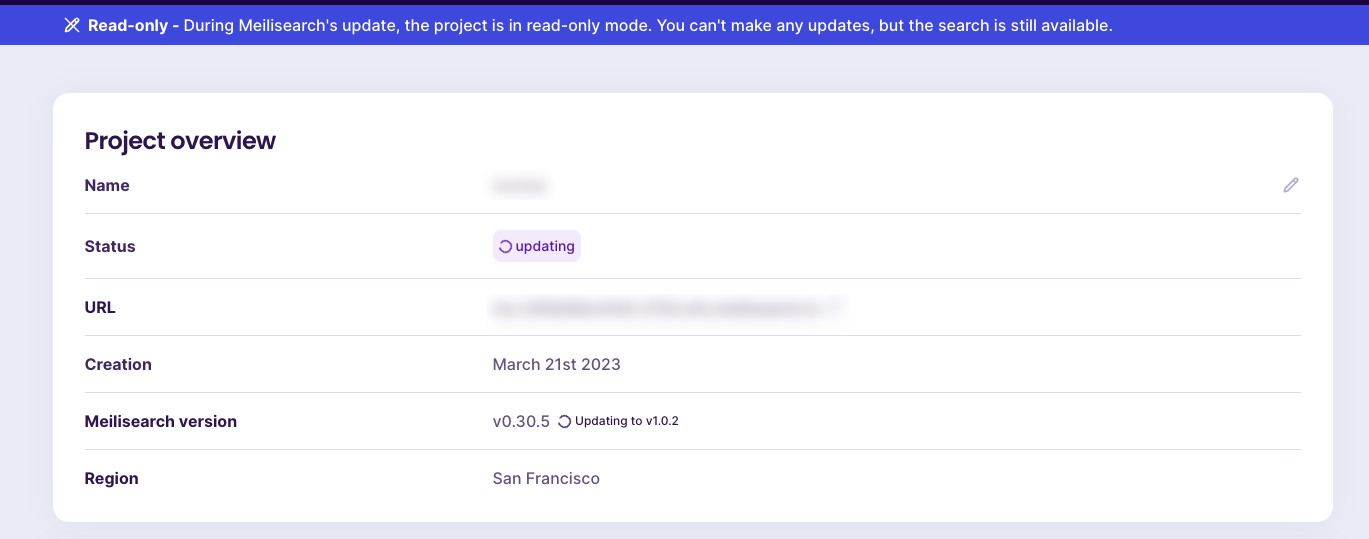
Log into your Meilisearch Cloud account and navigate to the project you want to update. Click on the project you want to update. Look for the “General settings” section at the top of the page. Whenever a new version of Meilisearch is available, you will see an update button next to the “Meilisearch version” field.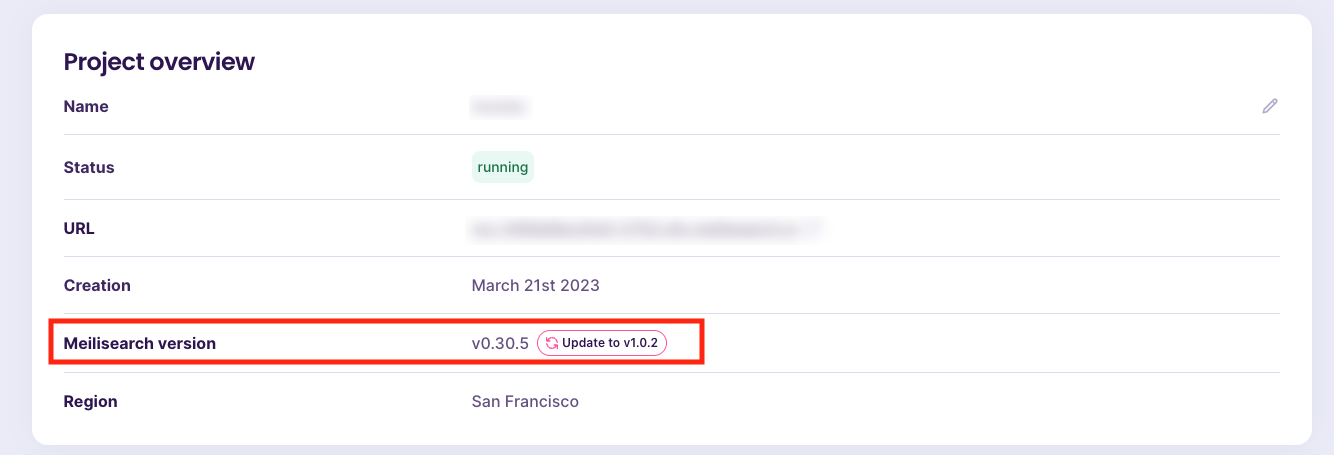
Updating a self-hosted Meilisearch instance
To update a self-hosted instance, create a snapshot of your data, install the new binary, and relaunch Meilisearch with the--upgrade-db flag. Meilisearch then upgrades your database on startup.
In some cases, Meilisearch cannot upgrade your database this way and returns an error at launch. If that happens, update your instance using a dump instead.
Updating with the --upgrade-db flag
The
--upgrade-db flag is available since Meilisearch v1.51. If you are upgrading to an older version, use --experimental-dumpless-upgrade instead.Step 1: Make a backup
Database upgrades are not atomic. In rare occasions, the process may partially fail and result in a corrupted database. To prevent data loss, create a snapshot of your instance:taskUid to monitor the snapshot creation status. Once the task is completed, proceed to the next step.
Step 2: Stop the Meilisearch instance
Next, stop your Meilisearch instance.- Local installation
- Cloud platforms
If you’re running Meilisearch locally, stop the program by pressing
Ctrl + c.Step 3: Install the new Meilisearch binary
Install the latest version of Meilisearch using:- Local installation
- Cloud platforms
/usr/bin directory:
Step 4: Relaunch Meilisearch
Relaunch Meilisearch with the--upgrade-db flag:
- Local installation
- Cloud platforms
UpgradeDatabase task. This task is processed immediately and cannot be canceled. You may follow its progress by using the GET /tasks?types=UpgradeDatabase endpoint to obtain its taskUid, then querying GET /tasks/TASK_UID.
While the task is processing, you may continue making search queries. You may also enqueue new tasks. Meilisearch will only process new tasks once UpgradeDatabase is completed.
If Meilisearch fails to launch with an error
Meilisearch cannot upgrade databases created with versions older than v1.12. In that case, it fails to launch and returns the following error:Rolling back an update
If the upgrade is taking too long, or if after the upgrade is completed its task status is set tofailed, you can cancel the upgrade task.
Cancelling the update task automatically rolls back your database to its state before the upgrade began.
After launching Meilisearch with the --upgrade-db flag:
- Cancel the
upgradeDatabasetask - If you cancelled the update before it failed, skip to the next step. If the update failed, relaunch Meilisearch using the binary of the version you were upgrading to
- Wait for Meilisearch to process your cancellation request
- Replace the new binary with the binary of the previous version
- Relaunch Meilisearch
Using a dump
Use this method when Meilisearch cannot upgrade your database with the--upgrade-db flag.
Step 1: Export data
Verify your database version
First, verify the version of Meilisearch that’s compatible with your database using the get version endpoint:Create the dump
Before creating your dump, make sure that your dump directory is somewhere accessible. By default, dumps are created in a folder calleddumps at the root of your Meilisearch directory.
Cloud platforms like DigitalOcean and AWS are configured to store dumps in the /var/opt/meilisearch/dumps directory.
If you’re unsure where your Meilisearch directory is located, try this:
- UNIX
- Windows CMD
- Windows PowerShell
taskUid to track the status of your dump. Keep in mind that the process can take some time to complete.
Once the dumpCreation task shows "status": "succeeded", you’re ready to move on.
Step 2: Prepare for migration
Stop the Meilisearch instance
Stop your Meilisearch instance.- Local installation
- Cloud platforms
If you’re running Meilisearch locally, you can stop the program with
Ctrl + c.Create a backup
Instead of deletingdata.ms, we suggest creating a backup in case something goes wrong. data.ms should be at the root of the Meilisearch binary unless you chose another location.
On cloud platforms, you will find the data.ms folder at /var/lib/meilisearch/data.ms.
Move the binary of the current Meilisearch installation and database to the /tmp folder:
- Local installation
- Cloud platforms
Install the desired version of Meilisearch
Install the latest version of Meilisearch using:- Local installation
- Cloud platforms
/usr/bin directory:
Step 3: Import data
Launch Meilisearch and import the dump
Execute the command below to import the dump at launch:- Local installation
- Cloud platforms
Restart Meilisearch as a service
If you’re running a cloud instance, pressCtrl+C to stop Meilisearch once your dump has been correctly imported. Next, execute the following command to run the script to configure Meilisearch and restart it as a service:
displayedAttributes back to its previous value using the update displayed attributes endpoint.
Conclusion
Now that your updated Meilisearch instance is up and running, verify that the dump import was successful and no data was lost. If everything looks good, then congratulations! You successfully migrated your database to the latest version of Meilisearch. Be sure to check out the changelogs. If something went wrong, you can always roll back to the previous version. Feel free to reach out for help if the problem continues. If you successfully migrated your database but are having problems with your codebase, be sure to check out our version-specific warnings.Delete backup files or rollback (optional)
Delete the Meilisearch binary anddata.ms folder created by the previous steps. Next, move the backup files back to their previous location using:
- Local installation
- Cloud platforms
- Local installation
- Cloud platforms