

Set up from the Meilisearch Cloud dashboard
Open your project in the Meilisearch Cloud dashboard, select the Search rules tab, and click New rule. Give the rule an ID, such asout-of-stock-last, and a description.
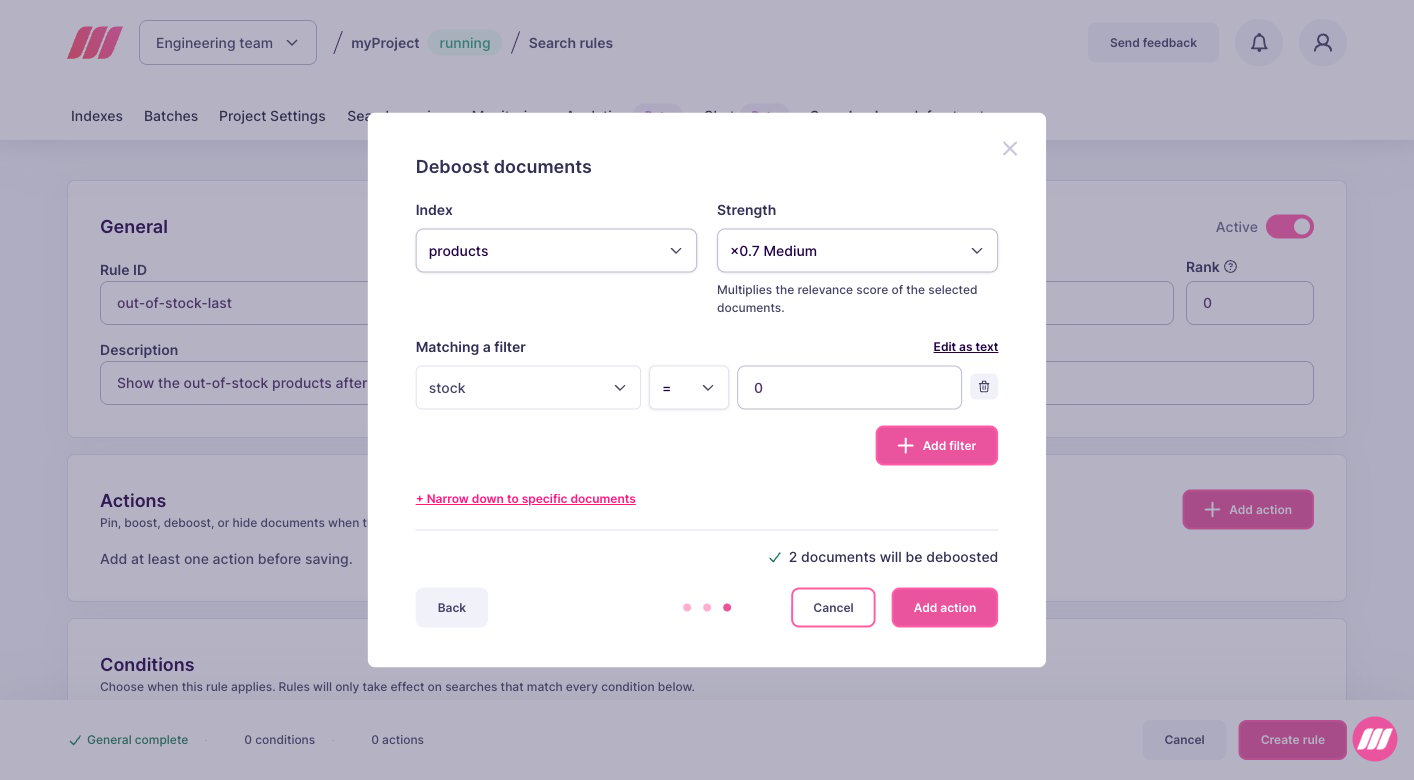
In the Actions block, click Add action, select Deboost documents, then click Next. Pick Use a filter, then fill in the dialog:
- Index: the index holding the products, here
products. - Filter: the condition selecting them, here
stock = 0. The attribute you filter on must be in thefilterableAttributessetting of the index, otherwise the action selects no document. - Strength: how far the selected products drop. Start with the medium value, then run a few searches of your own and adjust: the right strength depends on your data and on the way your users search.
Set up on a self-hosted instance
weightmultiplies the relevancy of the selected documents. Between0and1, the documents rank lower. The closer to0, the further down they go.- Deboosted documents stay in the results and in the facet counts. Only their position changes.
- A rule without
conditionsapplies to every search on the index. - The attributes used in
filtermust be in thefilterableAttributessetting of the index, otherwise the action selects nothing.
taskUid, because creating a rule is an asynchronous operation:
succeeded status. To follow its progress, pass the taskUid to the task API.
From then on, out-of-stock products lose ground to the ones you can ship, and customers still find them. They do not always fall to the bottom: a product that matches the query much better than the others can still come first. Check a few typical searches and lower the weight if you want a stronger effect.
Next steps
Hide documents
Remove documents from the results instead of lowering them
Boost documents
Rank a selection of documents higher
Specific behaviors
See how actions interact with filters and with each other
API reference
Endpoints, rule fields, and update behavior