

Example scenario
On the samesupport help center, users who type “invoice” also benefit from seeing the “Download monthly statements” guide (id: "download-monthly-statements") right after the “Billing workspace overview” article. You want the two billing documents at positions 0 and 1, with organic results filling the rest of the page.
One rule with two pin actions is enough: no need to create two separate rules for the same query condition.
Set up from the Meilisearch Cloud dashboard
Open your project in the Meilisearch Cloud dashboard and select the Search rules tab.1. Create or edit the rule
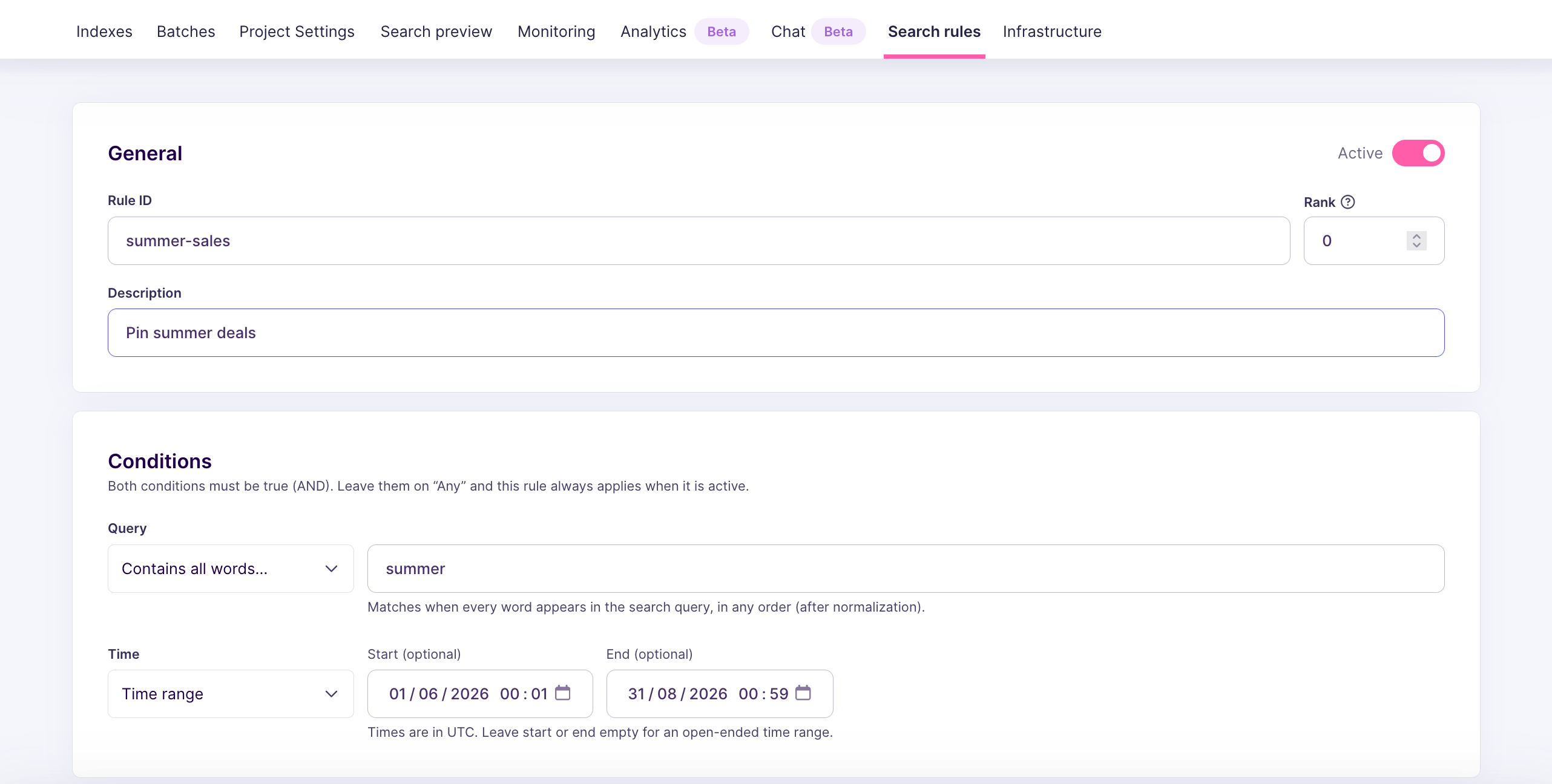
If you have already created aninvoice-help rule (see Pin one result for a query), click it in the list to edit it. Otherwise, click New rule and fill in the Rule ID, Description, and Rank as usual.
2. Add the query condition
In the Conditions block, add a Query words condition with the wordinvoice. You only need one condition: both pins fire together whenever the query matches.
3. Add the first pin
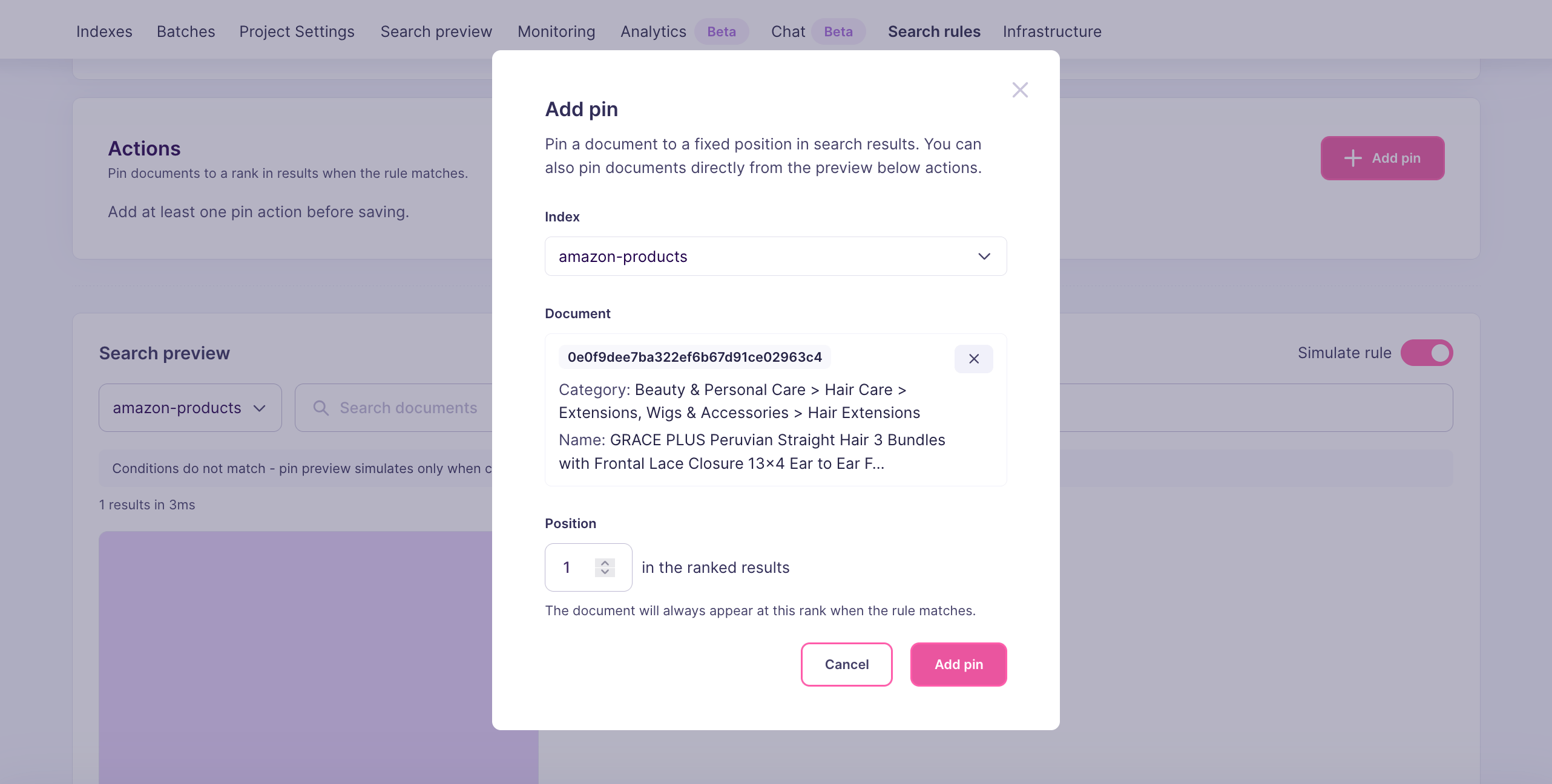
In the Actions block, click Add pin. Configure:- Index:
support - Document:
billing-workspace-overview - Position:
0
4. Add the second pin
Click Add pin again. Configure:- Index:
support - Document:
download-monthly-statements - Position:
1
0 and 1 when the rule fires.
5. Save the rule
Click Create rule (or Save changes when editing). The rule appears in the Search rules list with the two pin actions visible in the row.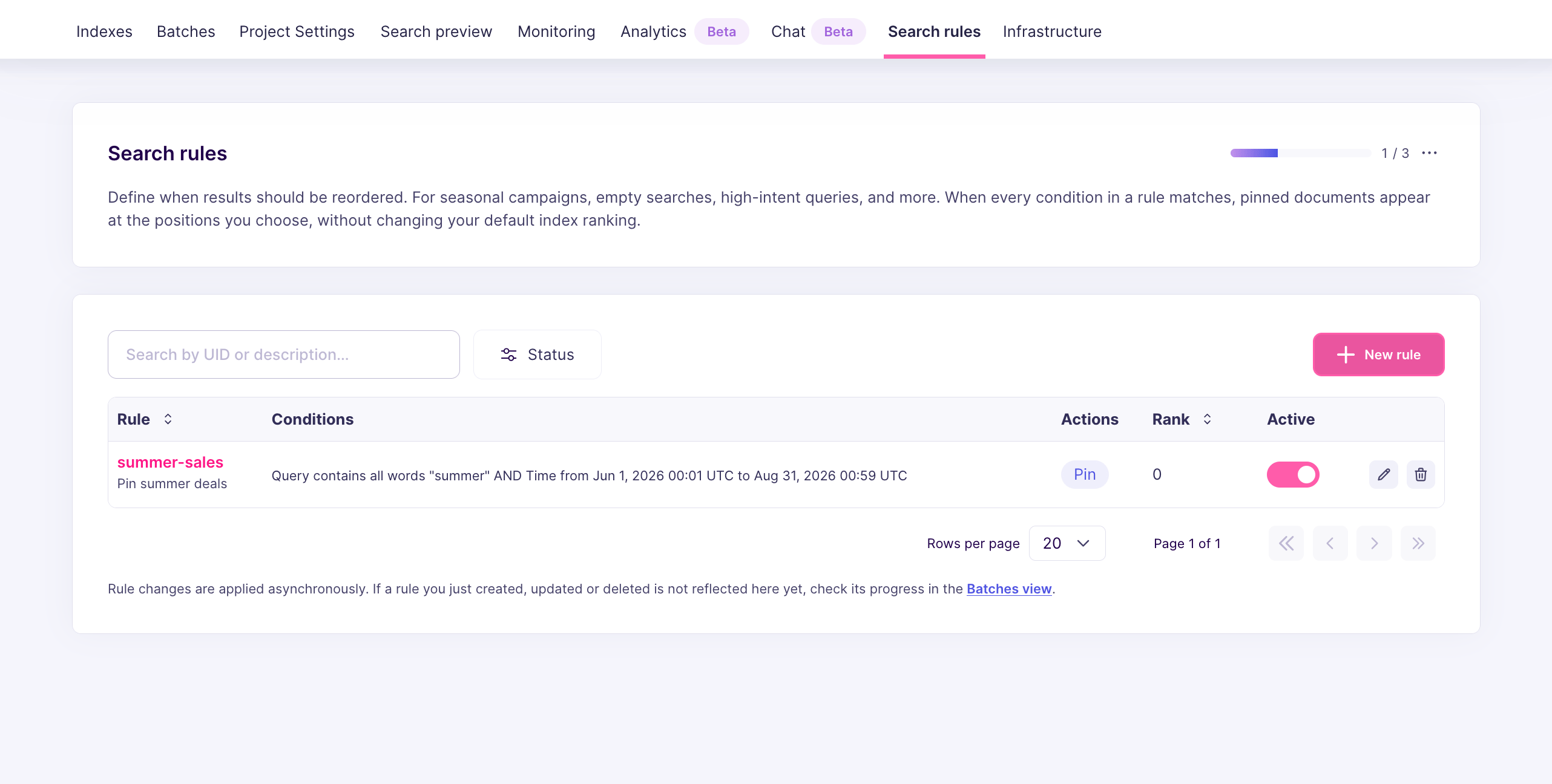
Set up from the API
Send aPATCH /dynamic-search-rules/invoice-help with two actions:
- Positions in the API are zero-indexed.
0is the first slot,1is the second, and so on. - Each action targets exactly one document. To pin three documents, add three actions.
- You can mix documents from different indexes by setting a different
indexUidper action. This is useful for federated search layouts where the same rule should promote results across multiple indexes.
How Meilisearch evaluates the rule
At search time, Meilisearch:- Matches the search query against every active rule
- For each matching rule, verifies that every pinned document exists and passes the current search filters
- Inserts the surviving pinned documents at the positions you requested
- Fills the remaining positions with organic results and removes duplicates
Variations and tips
- Non-contiguous positions: nothing stops you from pinning at positions
0and5. The gap between the two pins is filled with organic results. Use this when you want to interleave pinned and organic content. - Same document, same rule: pinning the same document at two different positions is not useful. Meilisearch deduplicates the final result set, so the document only appears once.
- Competing rules on the same position: if two rules both try to pin a different document at position
0, the rule with the lowerprecedencevalue wins. See Precedence between rules. - Large pinned lists: pinning many documents removes relevance control over those slots. Keep pinned sets small, usually two to five documents, and let organic ranking handle the rest.
Next steps
Pin one result for a query
Start with the simplest pinning pattern
Pinning behavior
Learn how pins interact with ranking, filters, and precedence
Schedule a promotion
Combine a query condition with a time window
Pause a rule
Temporarily disable a rule without deleting it
API reference
Full request and response shapes