

Example scenario
You run a help center on asupport index. Users often type “invoice” when they are looking for the “Billing workspace overview” article (document id: "billing-workspace-overview"). Currently, that article ranks third organically. You want it to appear first whenever the word “invoice” appears in the query.
A single search rule with one condition and one pin action covers this.
Set up from the Meilisearch Cloud dashboard
Open your project in the Meilisearch Cloud dashboard and select the Search rules tab.1. Create a new rule
Click New rule in the top-right corner.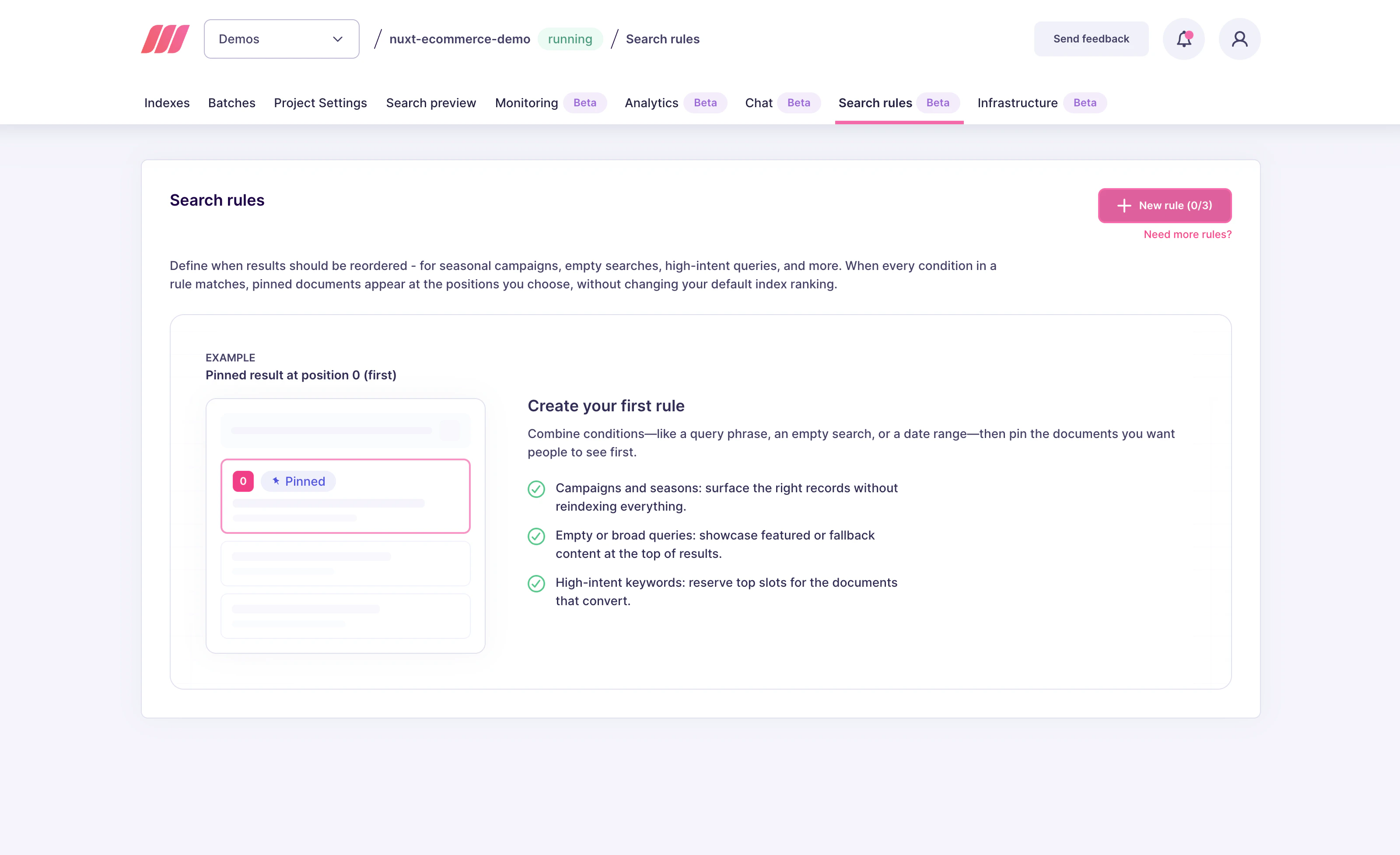
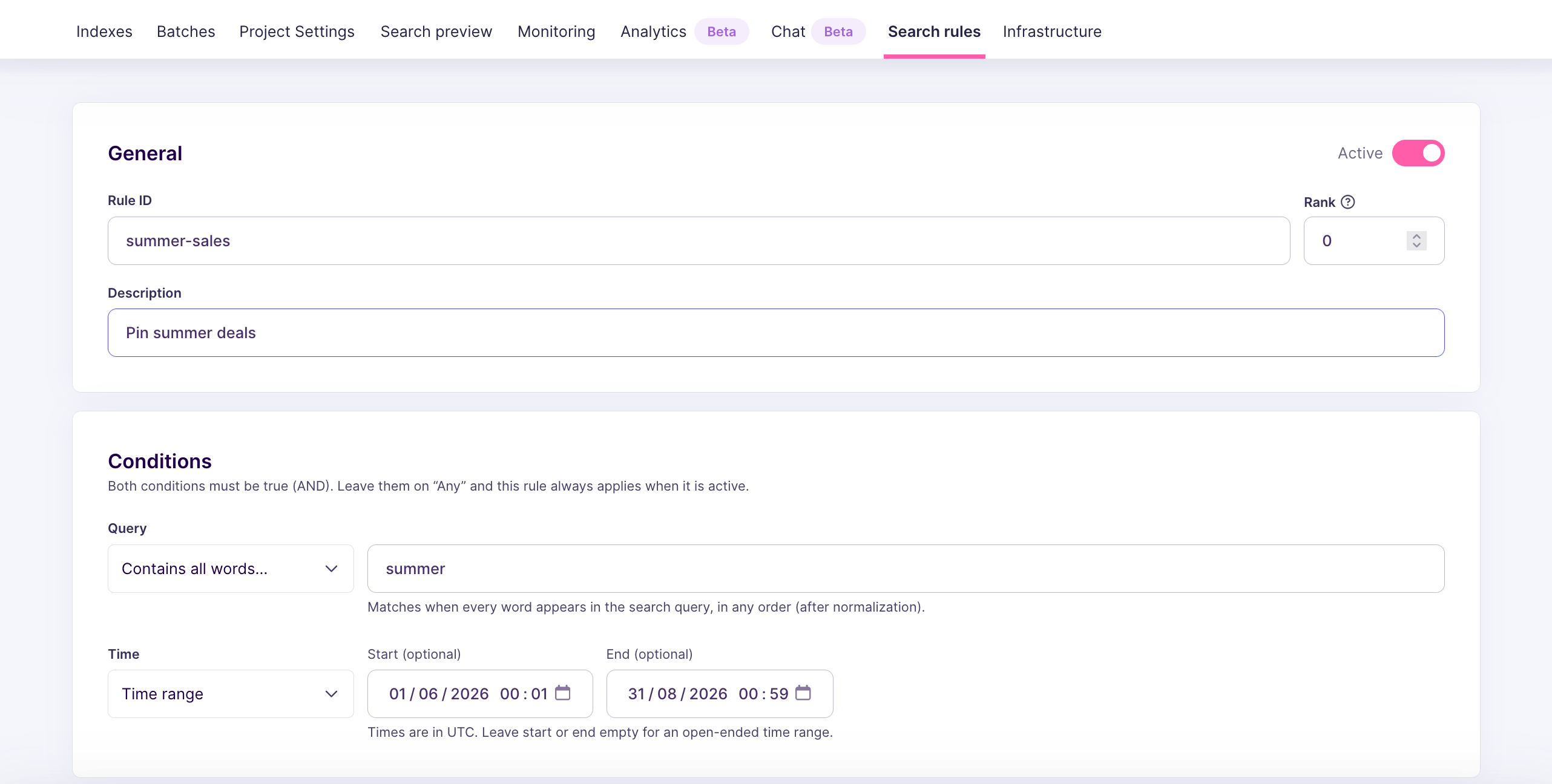
2. Fill in the rule’s general information
Give the rule a descriptive Rule ID, for exampleinvoice-help. This value becomes the rule’s uid in the API and cannot be changed later without recreating the rule. Add a short Description so your team knows what the rule does. Leave Rank at 0 unless you already have a competing rule, and keep the Active toggle on so the rule applies at search time.
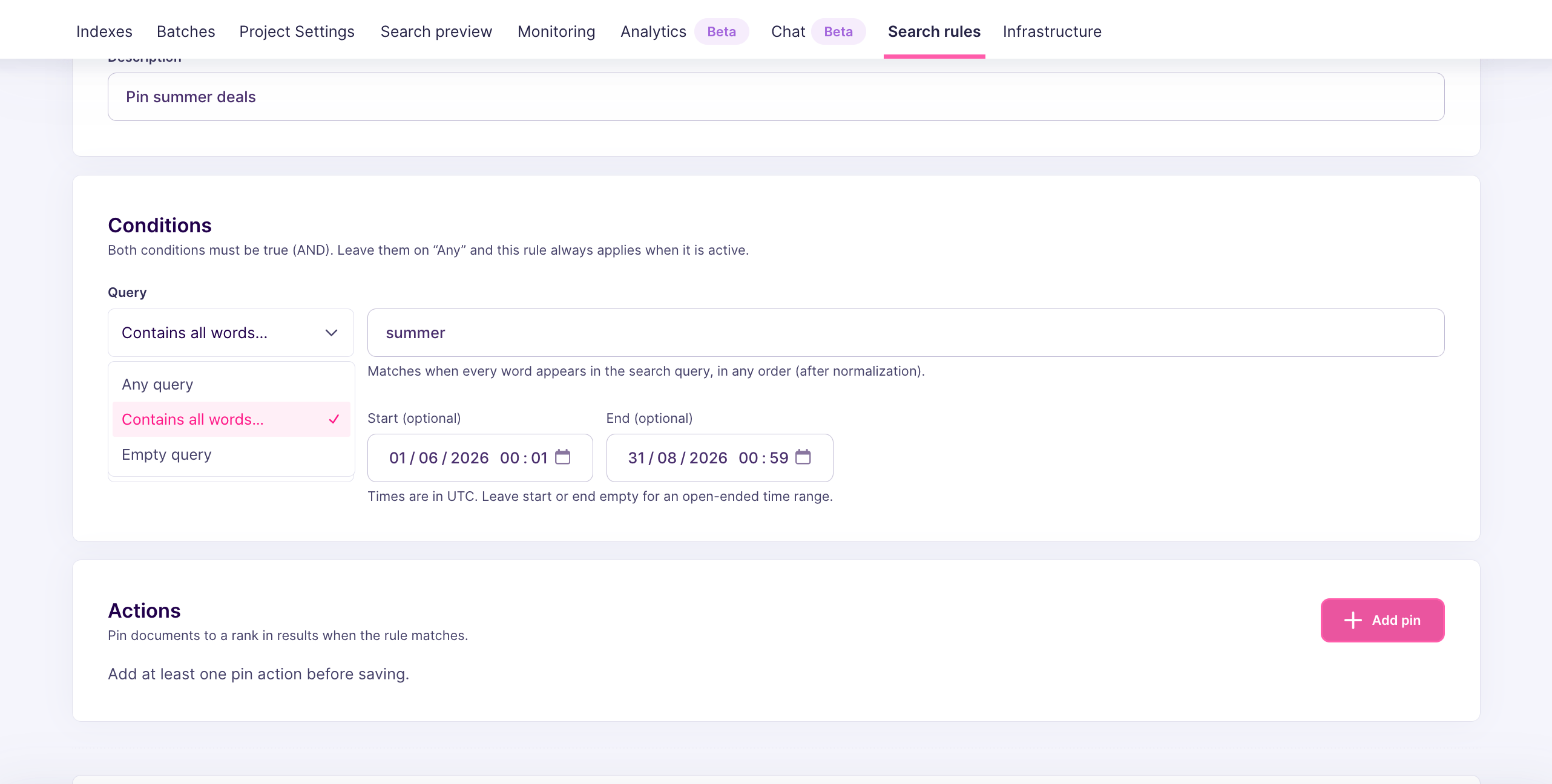
3. Add a query condition
In the Conditions block, click the combo box belowQuery, then pick Contains all words, and enter invoice in the nearby field.
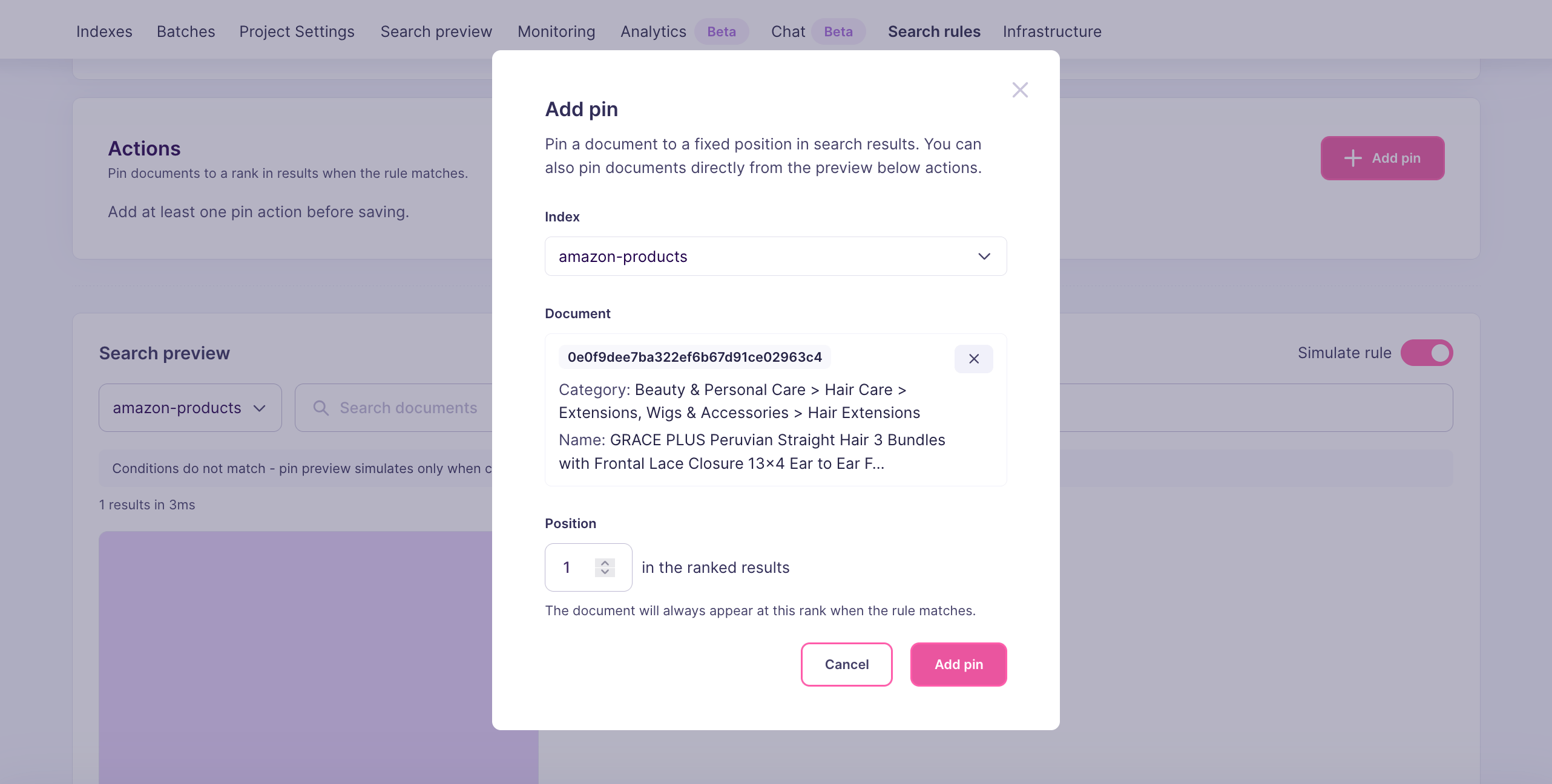
4. Pin the target document
In the Actions block, click Add pin. In the dialog:- Set Index to the index that holds the document, for example
support - Pick the document under Document (here,
billing-workspace-overview) - Set Position to
0so the document lands in the first result slot
5. Save the rule
Back on the rule editor, confirm that the Conditions and Actions sections show the entries you just created. Click Create rule in the bottom-right corner. The rule now appears in the Search rules list. You can edit it, deactivate it, or delete it from this view later.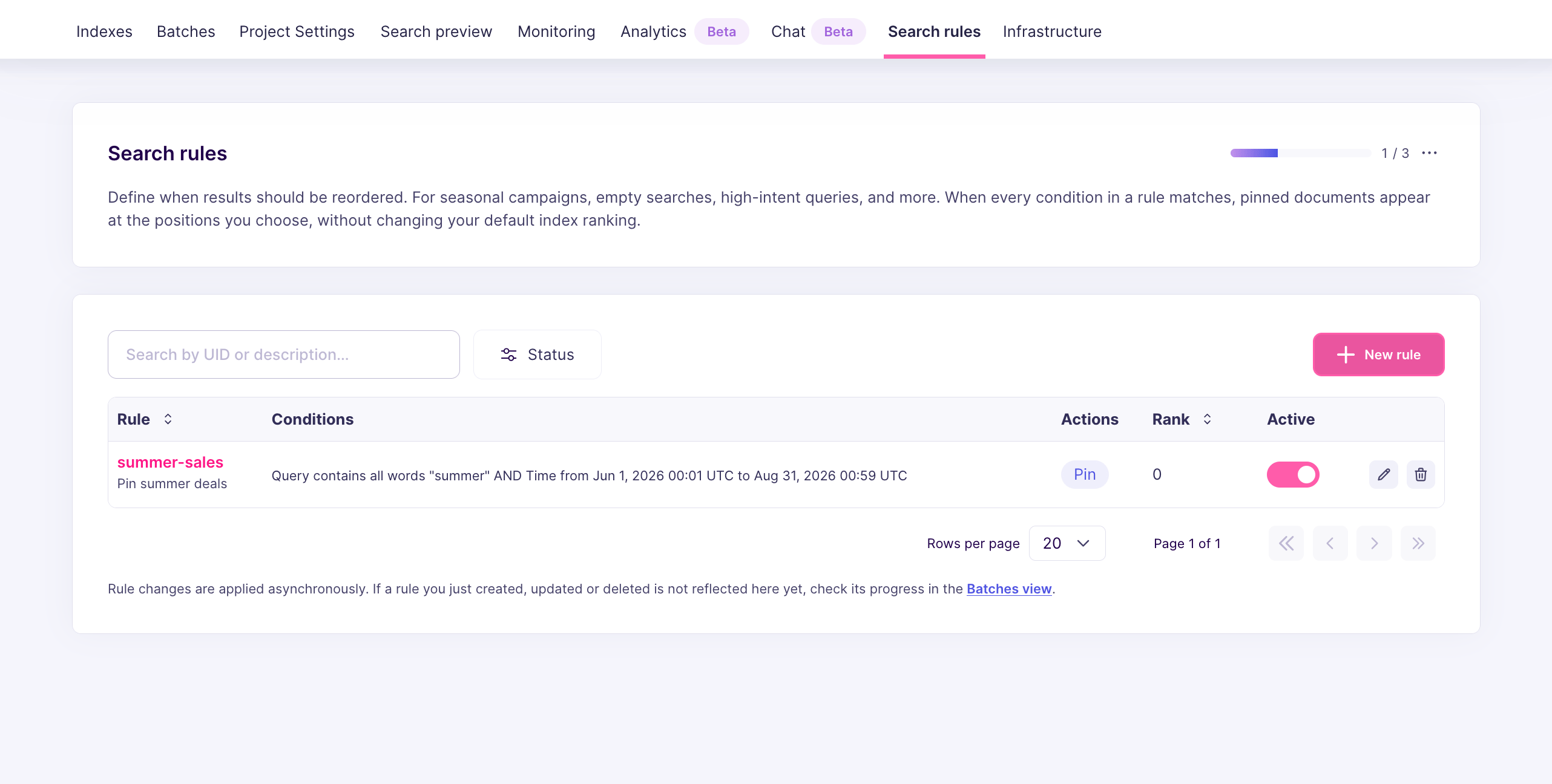
Set up from the API
Send aPATCH /dynamic-search-rules/invoice-help with the following body:
uidcomes from the URL (invoice-help), not from the body.position: 0targets the first result slot.indexUidon each item inactions.pinscopes the pin to the document living in that index. If you omit it, the pin can apply to queries on any index, but only when that index contains a document with the specified ID.- The route returns a
202 ACCEPTEDand the task that needs processing for the rule to be active.
How Meilisearch evaluates the rule
At search time, Meilisearch:- Matches the search query against every active rule
- For each matching rule, verifies that the pinned document exists and passes the current search filters
- Inserts the surviving pinned document at the requested position
- Removes duplicates from the final result set
Next steps
Pin several results in a fixed order
Add multiple pin actions to the same rule
Schedule a promotion
Combine a query condition with a time window
Pinning behavior
Learn how pins interact with ranking, filters, and precedence
Pause a rule
Temporarily disable a rule without deleting it
API reference
Full request and response shapes