

isEmpty query condition fires when the query string is empty or missing, so you can curate a welcome list of featured documents without changing any organic ranking.
Example scenario
On thesupport help center, the search bar is visible on every page. When users focus it without typing anything, they currently see the five oldest documents, which are not the most helpful. You want to replace that default list with three curated articles that cover the most common starting questions:
quickstart-overviewat position0popular-integrationsat position1contact-supportat position2
isEmpty condition and three pin actions handles this.
Set up from the Meilisearch Cloud dashboard
Open your project in the Meilisearch Cloud dashboard and select the Search rules tab.1. Create a new rule
Click New rule. Give it a descriptive Rule ID such asempty-state-help, add a short description, and keep the Active toggle on.
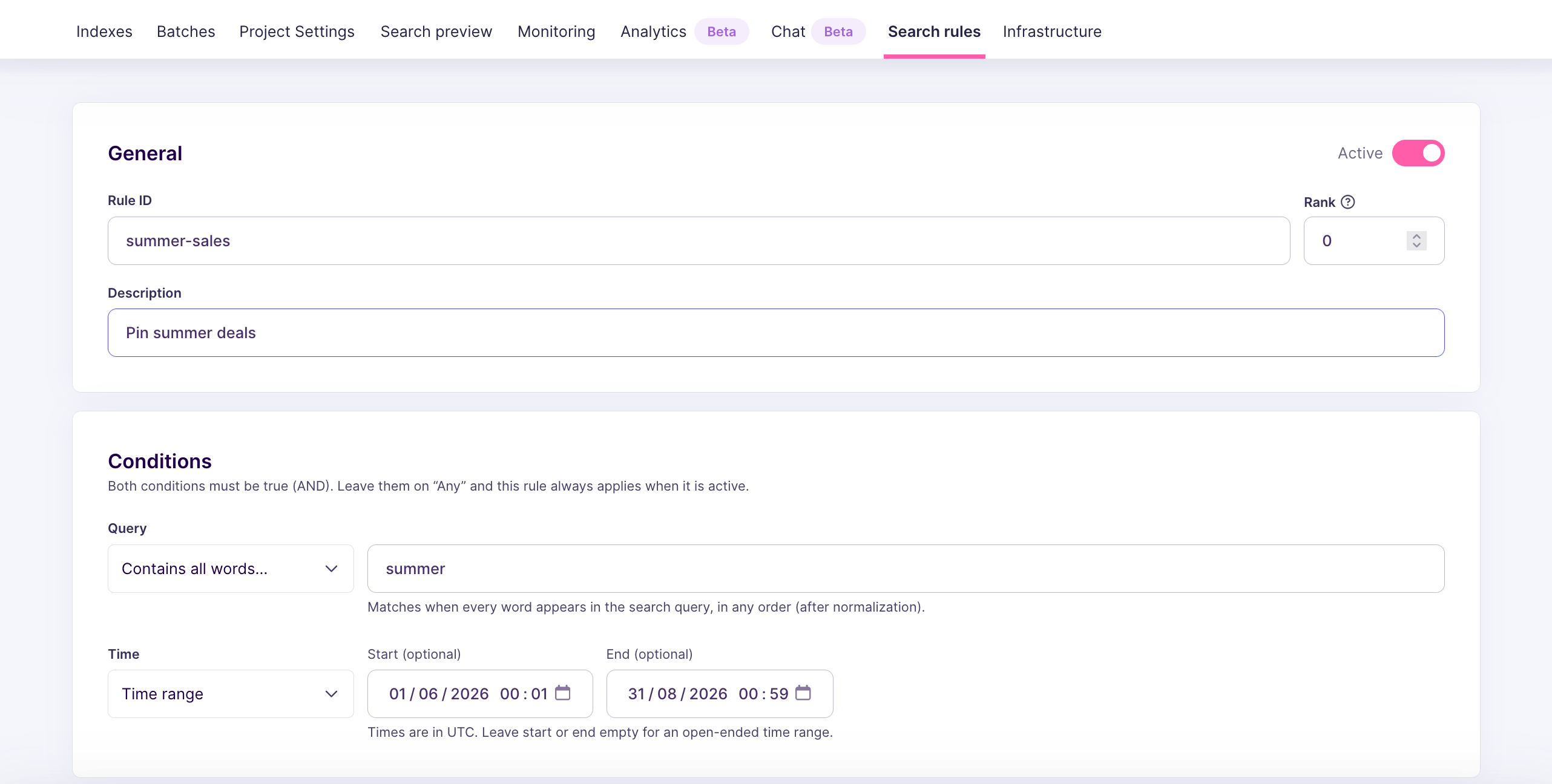
2. Add an empty query condition
In the Conditions block, click the combo box underQuery. Pick the Empty query option
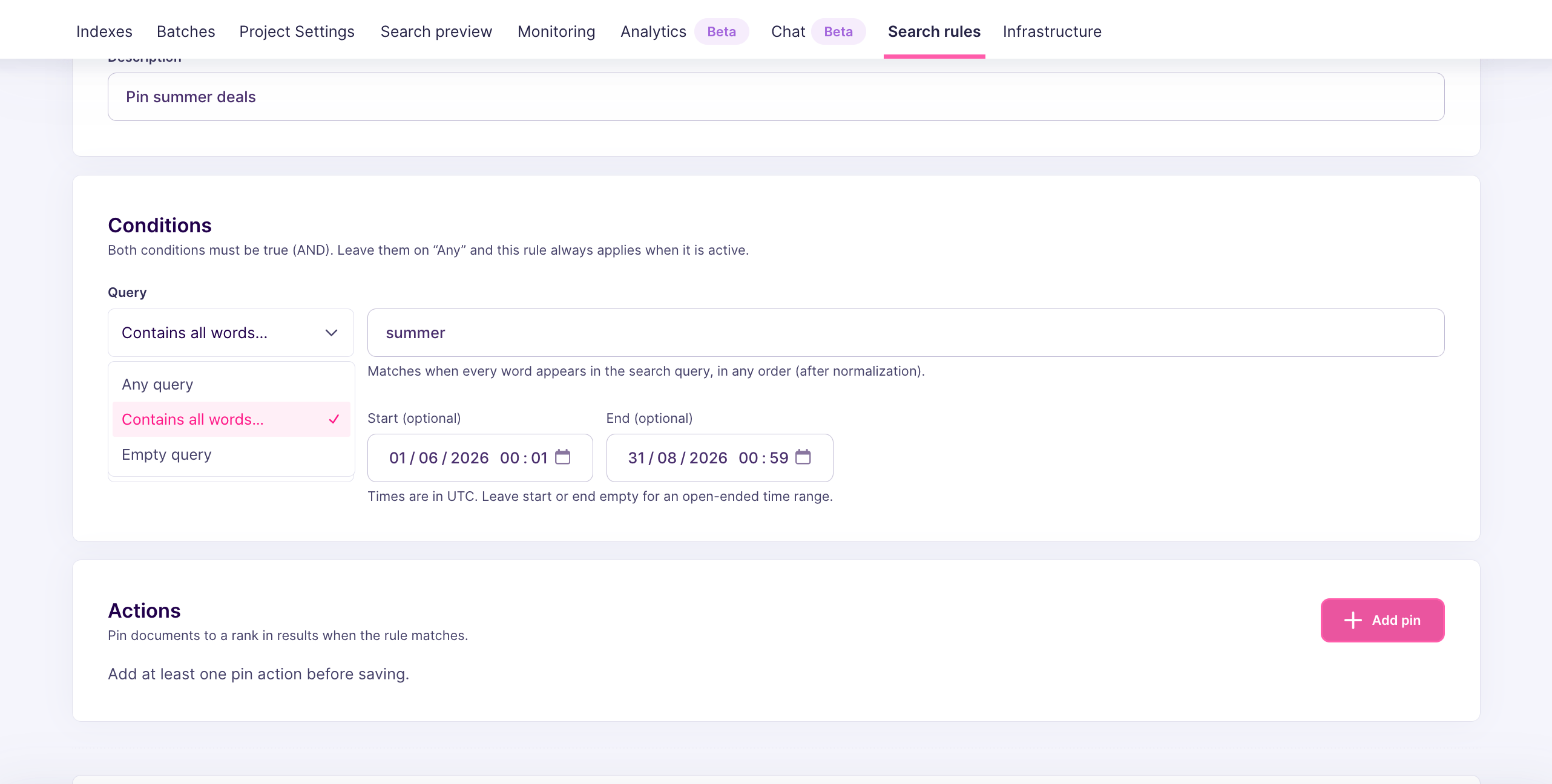
3. Pin the featured documents
In the Actions block, click Add pin three times, once per document:support/quickstart-overviewat position0support/popular-integrationsat position1support/contact-supportat position2
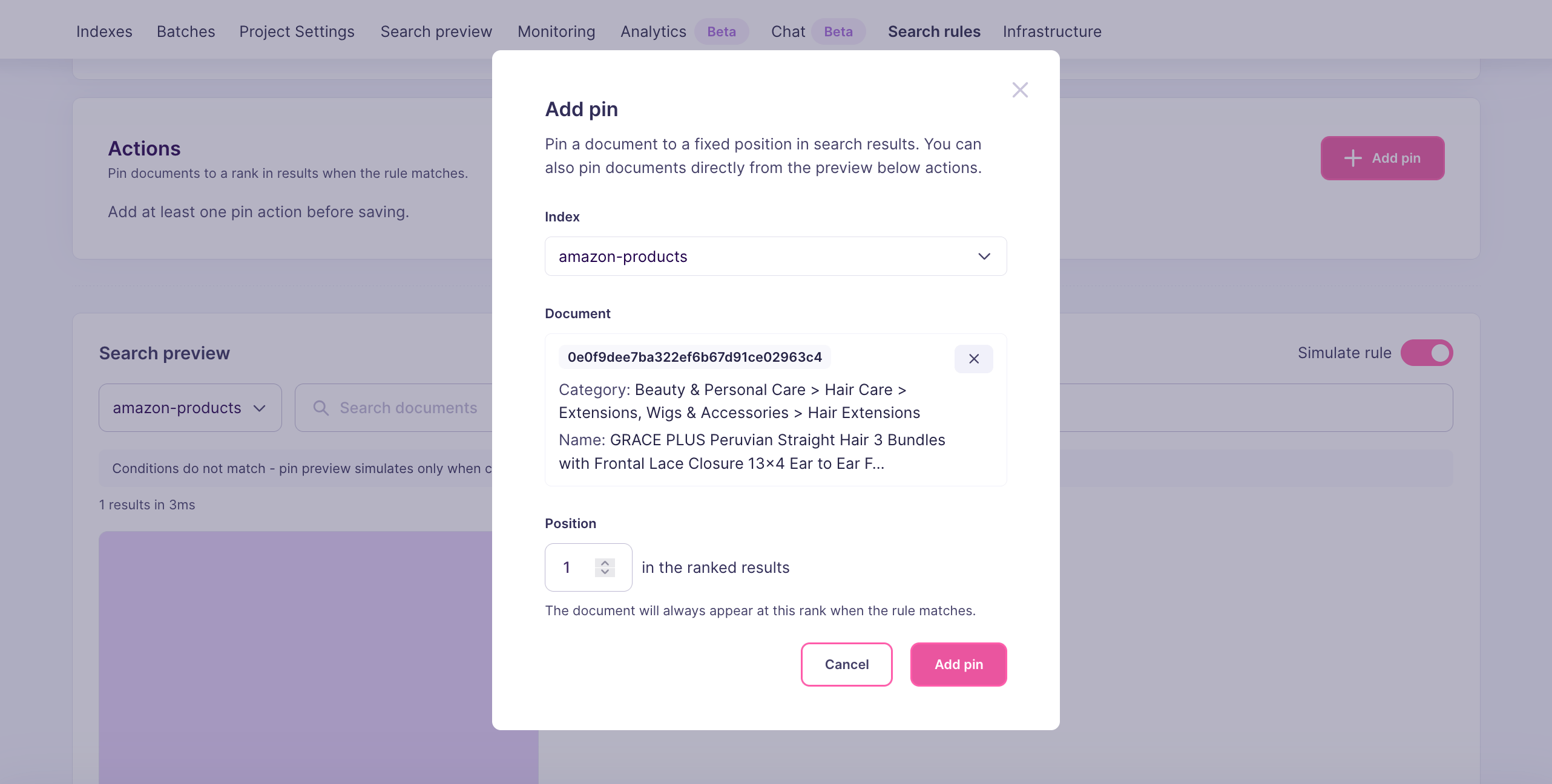
4. Save the rule
Click Create rule. The new rule appears in the Search rules list with theisEmpty condition and three pin actions.
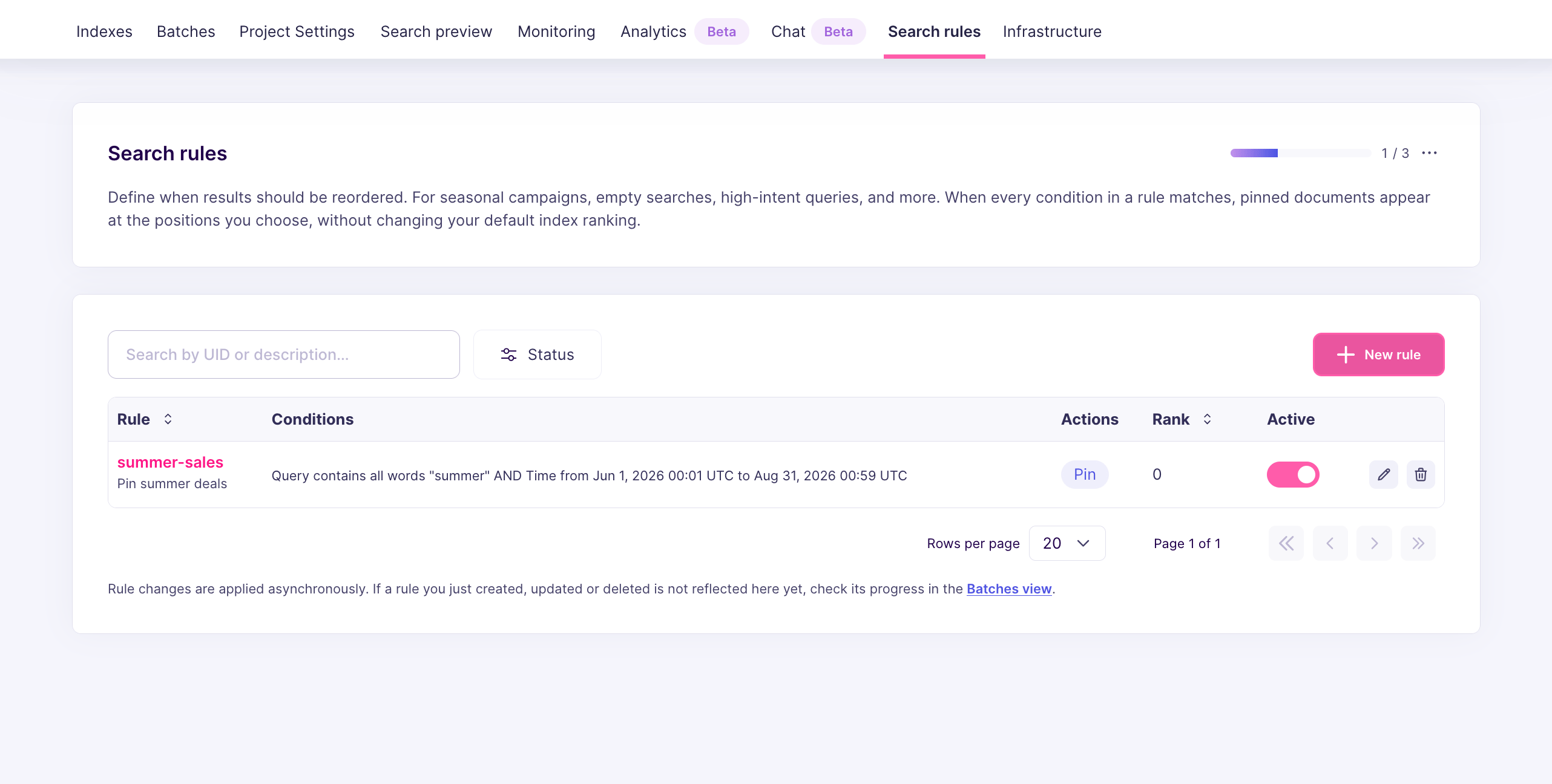
Set up from the API
Send aPATCH /dynamic-search-rules/empty-state-help:
isEmpty: truemeans the rule only fires when the search request contains no query text.isEmpty: trueandwordsare mutually exclusive within a single condition. A condition either matches empty queries or matches queries containing words.- Pinned documents do not need to match the query text, which is convenient here because there is no query text to match.
When the rule fires
The rule fires whenever Meilisearch receives:- A search request with
qmissing from the body - A search request where
qis the empty string"" - A search request where
qcontains only whitespace (case-insensitive, accent-insensitive behavior is irrelevant here)
words condition instead. See Pin one result for a query.
Variations and tips
- Pagination: if your empty-state UI uses
limitandoffsetto paginate, the pinned documents only appear on the first page. Users scrolling past position2see organic results as usual. - Facets and filters: if users can filter the empty state (for example, by category), pins that do not match the active filters are dropped. The remaining pins stay at their positions, and organic results fill the gaps.
- Seasonal overrides: combine
isEmptywith a time window condition to swap your default browse list during a campaign. See Schedule a promotion for a limited time. - Separate rules for separate indexes: if you maintain multiple indexes with their own empty states (for example,
supportandproducts), create one rule per index. A single action’sindexUidonly controls one pin.
Next steps
Pin one result for a query
Pin a document for a specific query substring
Pin several results in a fixed order
Control multiple top positions at once
Schedule a promotion
Limit a rule to a campaign window
Pinning behavior
Learn how pins interact with ranking, filters, and precedence
API reference
Full request and response shapes