> ## Documentation Index
> Fetch the complete documentation index at: https://www.meilisearch.com/docs/llms.txt
> Use this file to discover all available pages before exploring further.
# Search preview
> Meilisearch comes with a built-in search interface for quick testing during development.
Meilisearch Cloud gives you access to a dedicated search preview interface. This is useful to test search result relevancy when you are tweaking an index's settings.
If you are self-hosting Meilisearch and need a local search interface, access `http://localhost:7700` in your browser. This local preview only allows you to perform plain searches and offers no customization options.
## Accessing and using search preview
Log into your [Meilisearch Cloud](https://cloud.meilisearch.com/login) account, navigate to your project, then click on "Search preview":
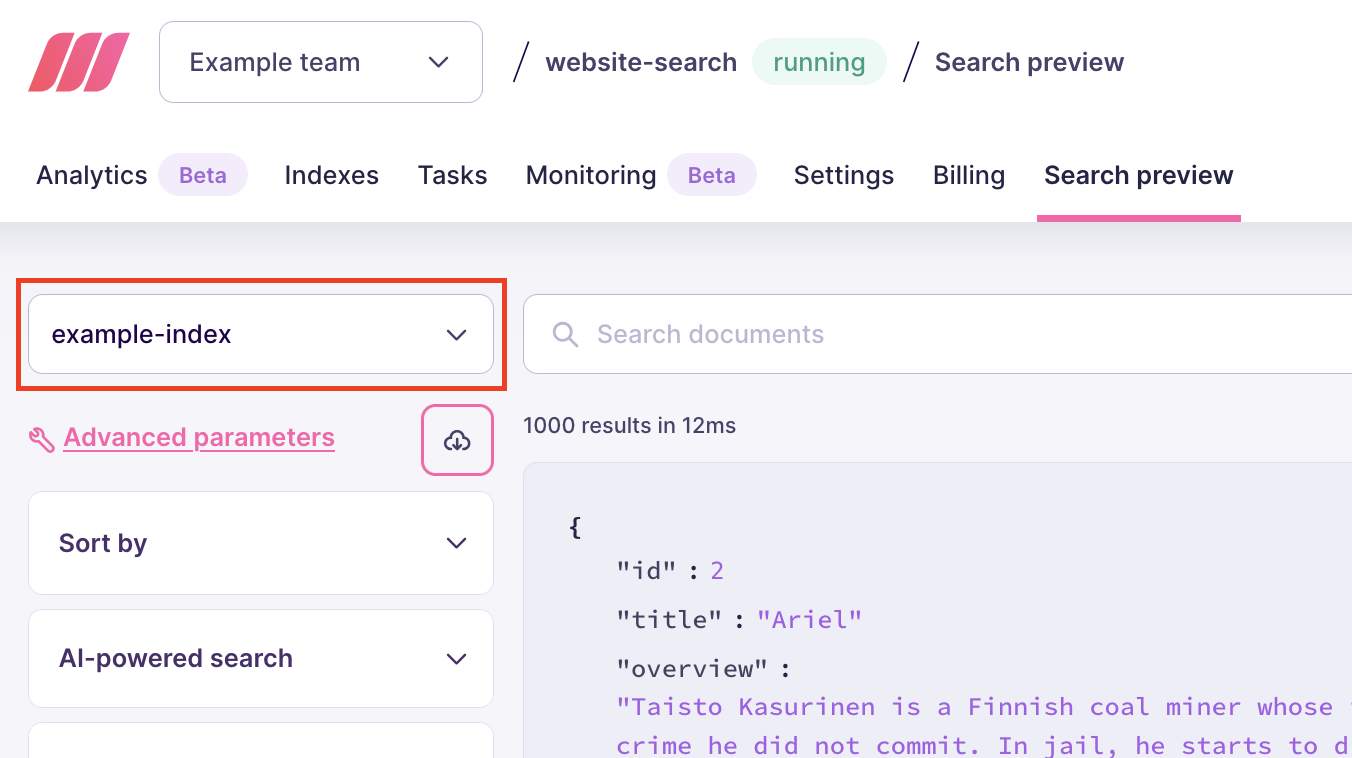
 Select the index you want to search on using the input on the left-hand side:
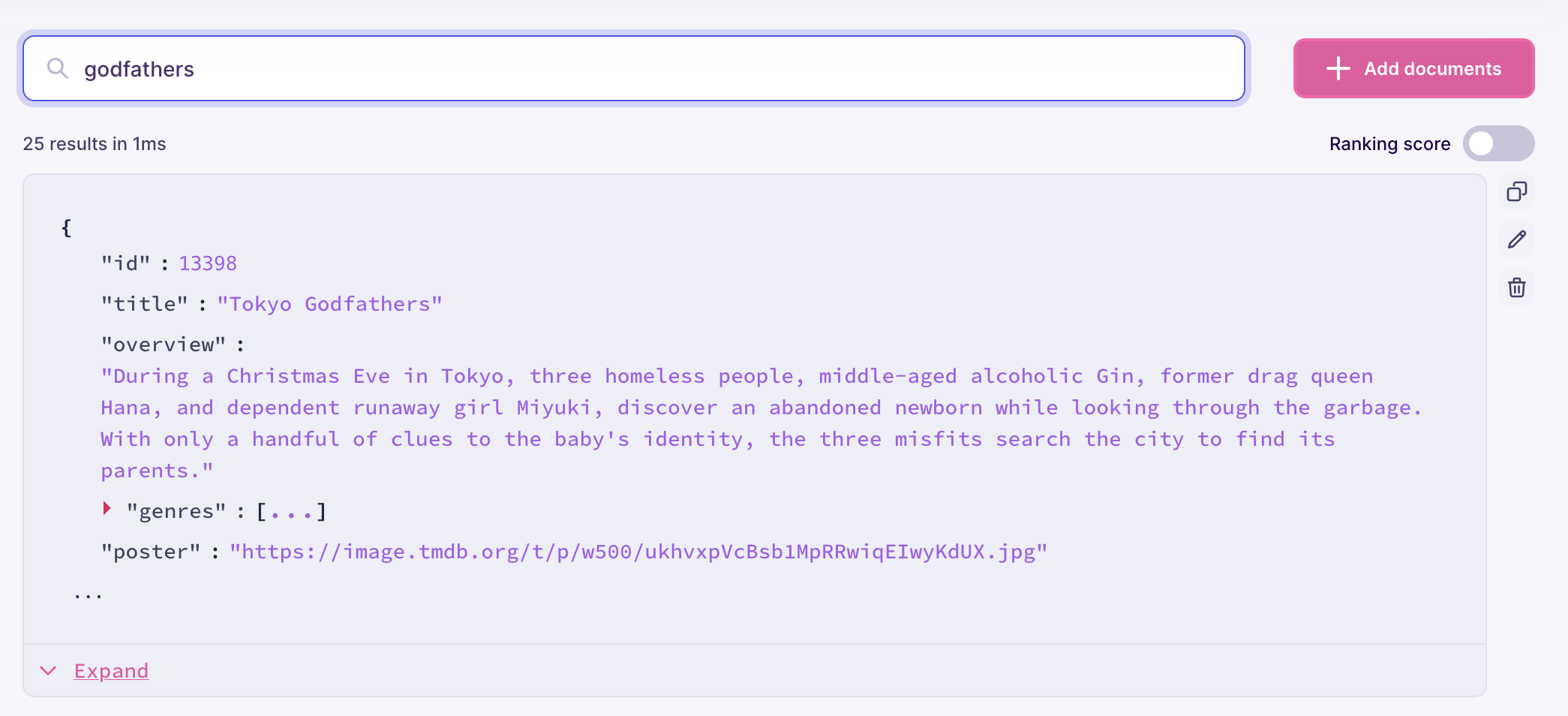
 Then use the main input to perform plain keyword searches:
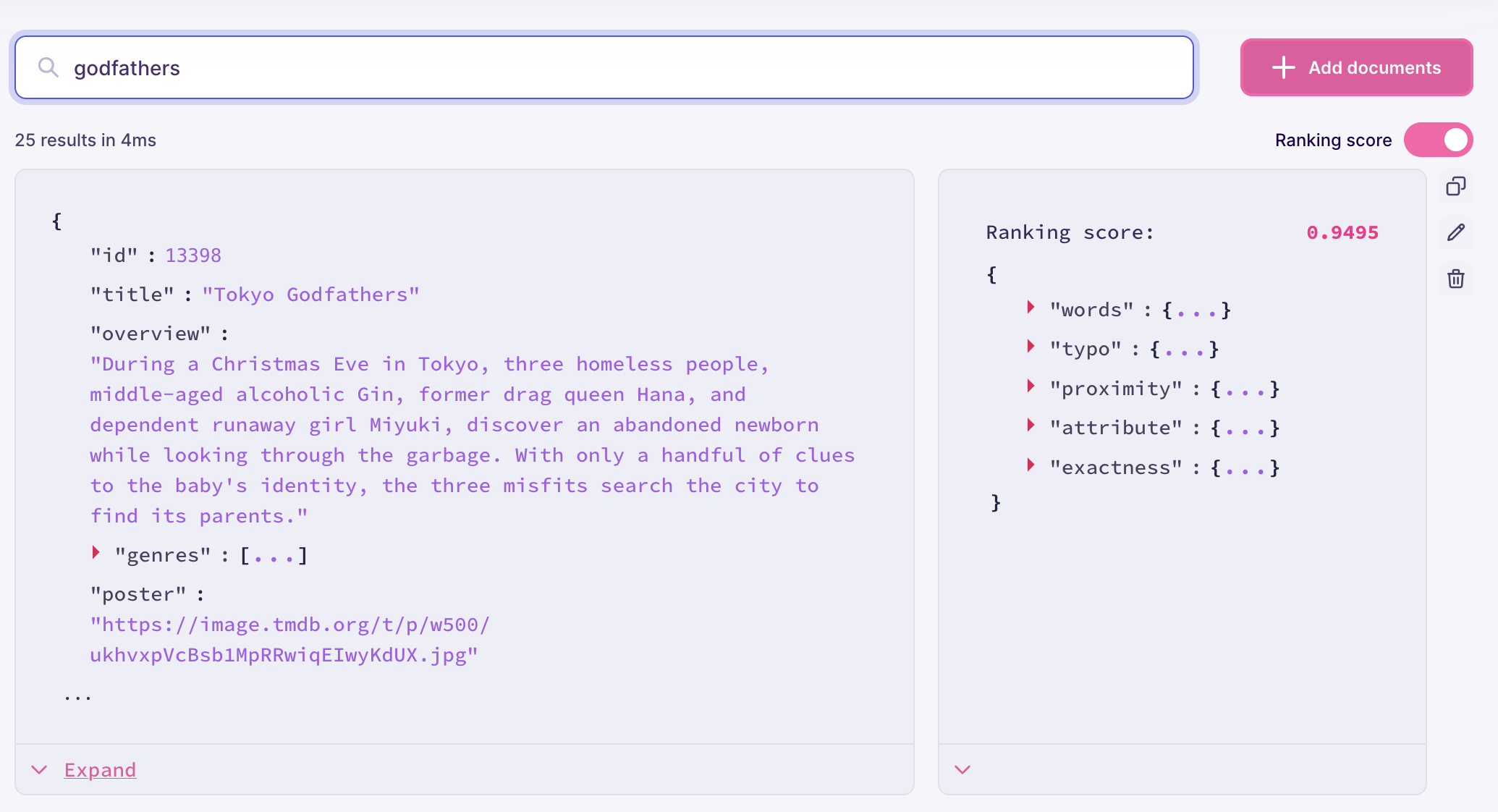
 When debugging relevancy, you may want to activate the "Ranking score" option. This displays the overall [ranking score](/capabilities/full_text_search/relevancy/ranking_score) for each result, together with the score for each individual ranking rule:
 ## Configuring search options
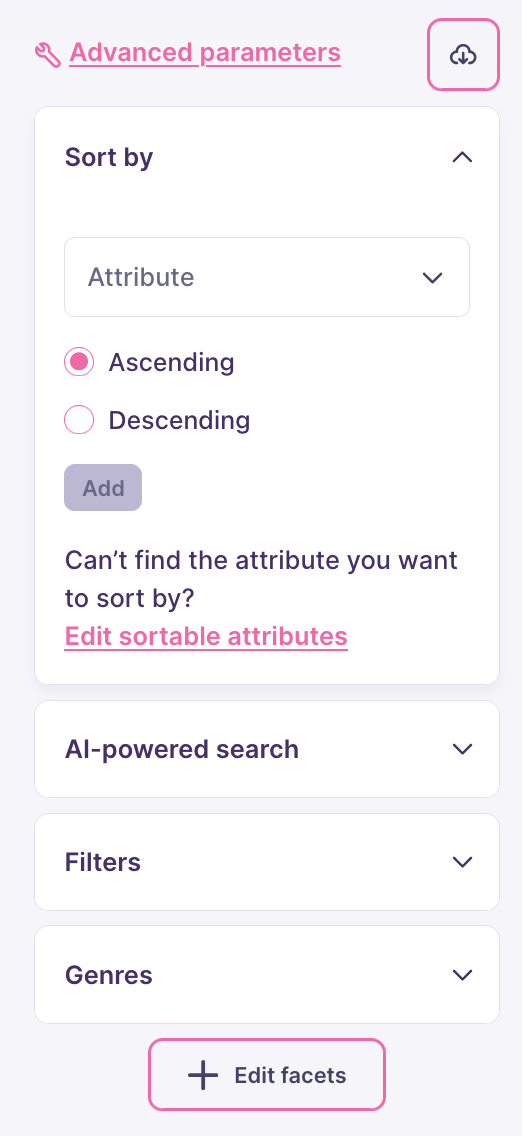
Use the menu on the left-hand side to configure [sorting](/capabilities/filtering_sorting_faceting/how_to/sort_results) and [filtering](/capabilities/filtering_sorting_faceting/getting_started). These require you to first edit your index's sortable and filterable attributes. You may additionally configure any filterable attributes as facets. In this example, "Genres" is one of the configured facets:
## Configuring search options
Use the menu on the left-hand side to configure [sorting](/capabilities/filtering_sorting_faceting/how_to/sort_results) and [filtering](/capabilities/filtering_sorting_faceting/getting_started). These require you to first edit your index's sortable and filterable attributes. You may additionally configure any filterable attributes as facets. In this example, "Genres" is one of the configured facets:
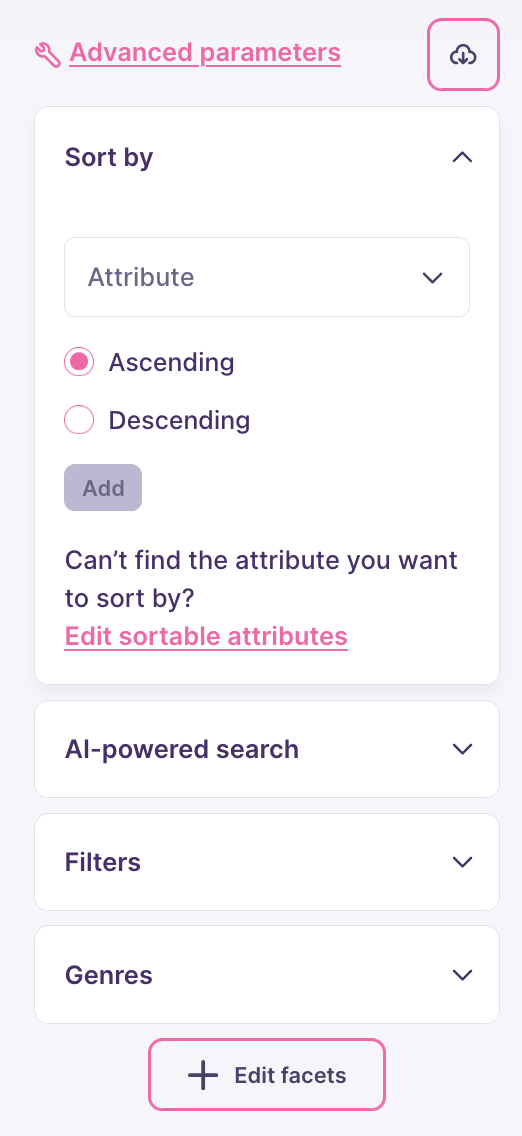 You can also perform [AI-powered searches](/capabilities/hybrid_search/getting_started) if this functionality has been enabled for your project.
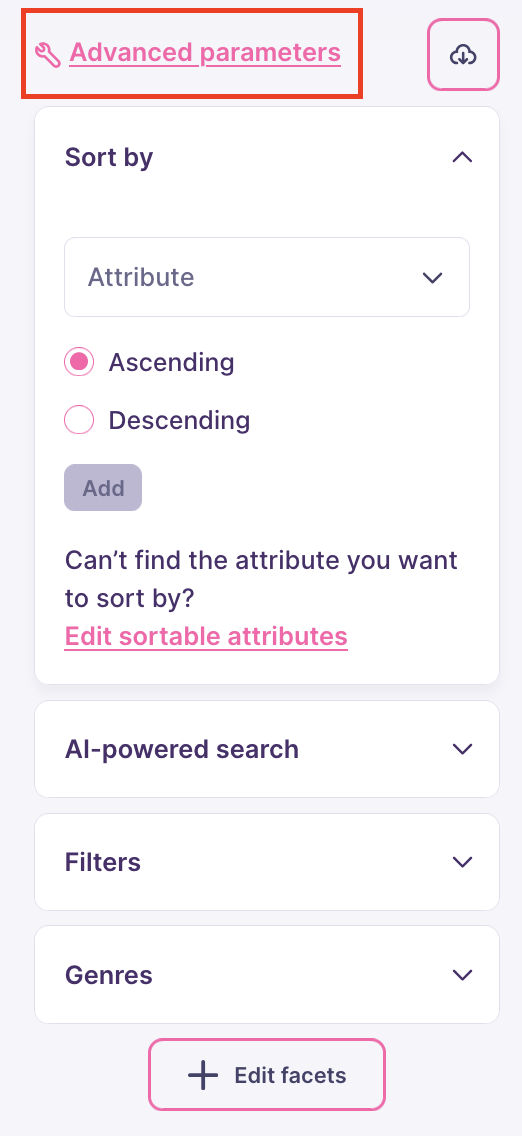
Clicking on "Advanced parameters" gives you access to further customization options, including setting which document fields Meilisearch returns and explicitly declaring the search language:
You can also perform [AI-powered searches](/capabilities/hybrid_search/getting_started) if this functionality has been enabled for your project.
Clicking on "Advanced parameters" gives you access to further customization options, including setting which document fields Meilisearch returns and explicitly declaring the search language:
 ## Exporting search options
You can export the full search query for further testing in other tools and environments. Click on the cloud icon next to "Advanced parameters", then choose to download a JSON file or copy the query to your clipboard:
## Exporting search options
You can export the full search query for further testing in other tools and environments. Click on the cloud icon next to "Advanced parameters", then choose to download a JSON file or copy the query to your clipboard: