> ## Documentation Index
> Fetch the complete documentation index at: https://www.meilisearch.com/docs/llms.txt
> Use this file to discover all available pages before exploring further.
# Integrate a relevant search bar to your documentation
> Use Meilisearch to index content in a text-heavy website. Covers installing Meilisearch, configuring a text scraper, and creating a simple front end.
This tutorial will guide you through the steps of building a relevant and powerful search bar for your documentation.
* [Run a Meilisearch instance](#run-a-meilisearch-instance)
* [Scrape your content](#scrape-your-content)
* [Configuration file](#configuration-file)
* [Run the scraper](#run-the-scraper)
* [Integrate the search bar](#integrate-the-search-bar)
* [What's next?](#next-steps)
## Run a Meilisearch instance
First, create a new Meilisearch project on Meilisearch Cloud. You can also [install and run Meilisearch locally or in another cloud service](/resources/self_hosting/getting_started/quick_start#setup-and-installation).
The host URL and the API key you will provide in the next steps correspond to the credentials of this Meilisearch instance.
## Scrape your content
[meilisearch-docsearch](https://github.com/tauri-apps/meilisearch-docsearch) is a community-maintained scraper tool that automatically reads the content of your website and stores it into a Meilisearch index.
`meilisearch-docsearch` is maintained by the community, not by the Meilisearch team. For issues and feature requests, visit the [GitHub repository](https://github.com/tauri-apps/meilisearch-docsearch).
### Configuration file
The scraper tool needs a configuration file to know what content you want to scrape. This is done by providing selectors (for example, the `html` tag).
Here is an example of a basic configuration file:
```json theme={null}
{
"index_uid": "docs",
"start_urls": [
"https://www.example.com/doc/"
],
"sitemap_urls": [
"https://www.example.com/sitemap.xml"
],
"stop_urls": [],
"selectors": {
"lvl0": {
"selector": ".docs-lvl0",
"global": true,
"default_value": "Documentation"
},
"lvl1": {
"selector": ".docs-lvl1",
"global": true,
"default_value": "Chapter"
},
"lvl2": ".docs-content .docs-lvl2",
"lvl3": ".docs-content .docs-lvl3",
"lvl4": ".docs-content .docs-lvl4",
"lvl5": ".docs-content .docs-lvl5",
"lvl6": ".docs-content .docs-lvl6",
"text": ".docs-content p, .docs-content li"
}
}
```
The `index_uid` field is the index identifier in your Meilisearch instance in which your website content is stored. The scraping tool will create a new index if it does not exist.
The `docs-content` class is the main container of the textual content in this example. Most of the time, this tag is a `` or an `` HTML element.
`lvlX` selectors should use the standard title tags like `h1`, `h2`, `h3`, etc. You can also use static classes. Set a unique `id` or `name` attribute to these elements.
All searchable `lvl` elements outside this main documentation container (for instance, in a sidebar) must be `global` selectors. They will be globally picked up and injected to every document built from your page.
Check the [meilisearch-docsearch documentation](https://github.com/tauri-apps/meilisearch-docsearch#readme) for the full list of configuration options.
### Run the scraper
You can run the scraper with Docker:
```bash theme={null}
docker run -t --rm \
--network=host \
-e MEILISEARCH_HOST_URL='' \
-e MEILISEARCH_KEY='' \
-v :/docs-scraper/config.json \
getmeili/docs-scraper:latest pipenv run ./docs_scraper config.json
```
For other installation methods, refer to the [meilisearch-docsearch repository](https://github.com/tauri-apps/meilisearch-docsearch#installation-and-usage).
`` should be the **absolute** path of your configuration file defined at [the previous step](#configuration-file).
The API key should have the permissions to add documents into your Meilisearch instance. In a production environment, we recommend providing the `Default Admin API Key` as it has enough permissions to perform such requests.
*More about [Meilisearch security](/resources/self_hosting/security/basic_security).*
We recommend running the scraper at each new deployment of your documentation using a CI/CD pipeline.
## Integrate the search bar
You can use [meilisearch-docsearch](https://github.com/tauri-apps/meilisearch-docsearch), a community-maintained front-end component, to integrate a search bar into any documentation website.
*[Docxtemplater](https://docxtemplater.com/) search bar demo*
```html theme={null}
```
The `host` and the `apiKey` fields are the credentials of the Meilisearch instance. Following on from this tutorial, they are respectively `MEILISEARCH_URL` and your `Default Search API Key`.
`indexUid` is the index identifier in your Meilisearch instance in which your website content is stored. It has been defined in the [config file](#configuration-file).
`container` is the CSS selector of the div element where the search box will be rendered.
We strongly recommend providing a `Default Search API Key` in a production environment, which is enough to perform search requests.
Read more about [Meilisearch security](/resources/self_hosting/security/basic_security).
## Next steps
At this point, you should have a working search engine on your website, congrats!
You can check [this tutorial](/resources/self_hosting/getting_started/quick_start) if you now want to run Meilisearch in production!
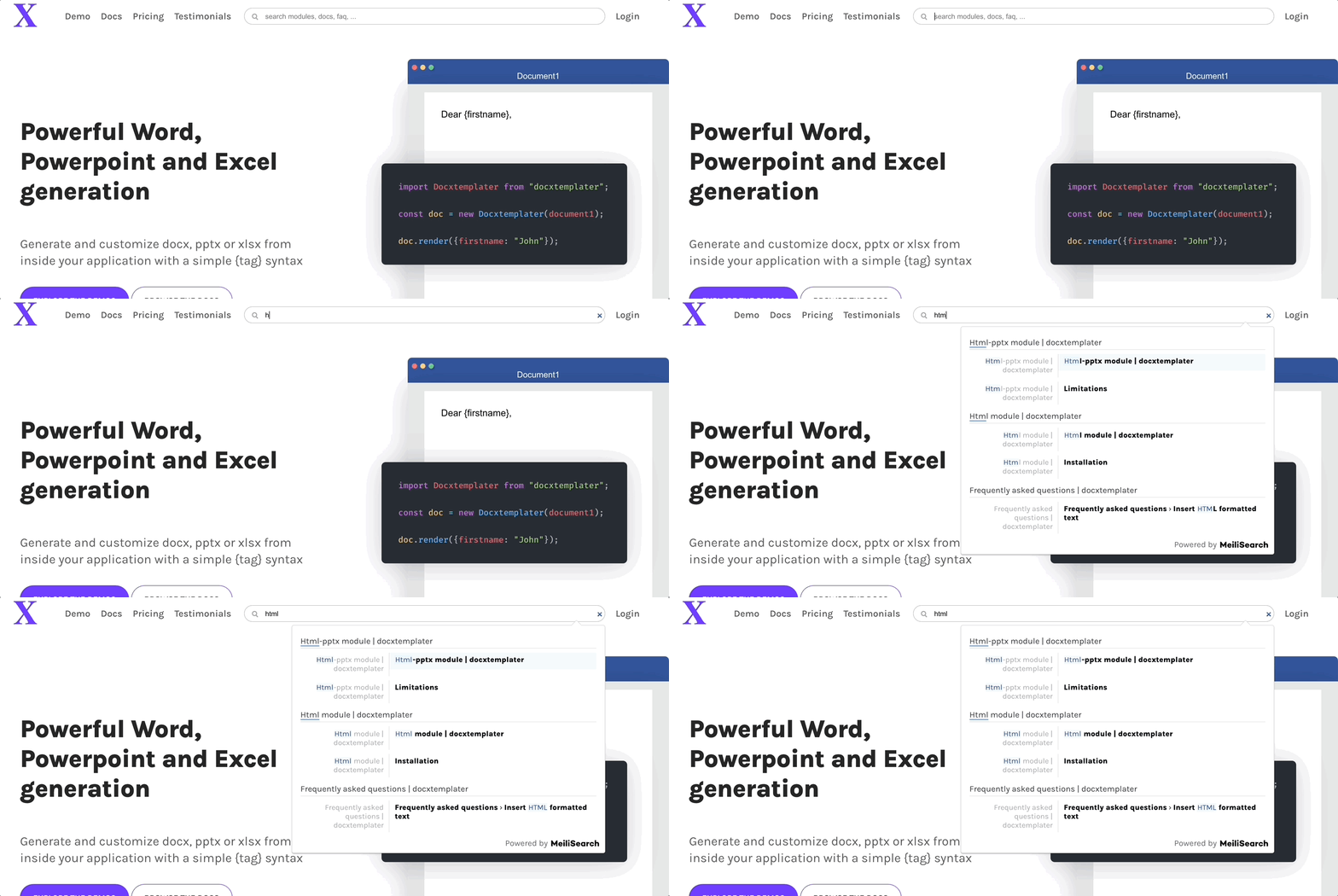 *[Docxtemplater](https://docxtemplater.com/) search bar demo*
```html theme={null}
```
The `host` and the `apiKey` fields are the credentials of the Meilisearch instance. Following on from this tutorial, they are respectively `MEILISEARCH_URL` and your `Default Search API Key`.
`indexUid` is the index identifier in your Meilisearch instance in which your website content is stored. It has been defined in the [config file](#configuration-file).
`container` is the CSS selector of the div element where the search box will be rendered.
*[Docxtemplater](https://docxtemplater.com/) search bar demo*
```html theme={null}
```
The `host` and the `apiKey` fields are the credentials of the Meilisearch instance. Following on from this tutorial, they are respectively `MEILISEARCH_URL` and your `Default Search API Key`.
`indexUid` is the index identifier in your Meilisearch instance in which your website content is stored. It has been defined in the [config file](#configuration-file).
`container` is the CSS selector of the div element where the search box will be rendered.