> ## Documentation Index
> Fetch the complete documentation index at: https://www.meilisearch.com/docs/llms.txt
> Use this file to discover all available pages before exploring further.
# Schedule a promotion for a limited time
> Combine a query condition with a time window to run a campaign pin automatically and expire it without manual cleanup.
Campaigns rarely run forever. A summer sale landing page, a holiday banner, or a product launch should appear at the top of results for a precise window and then disappear without anyone needing to remember to delete the rule. Time conditions pair a query condition with a start and end timestamp, so the rule only applies inside that window.
Search rules are experimental. Enable the `dynamicSearchRules` flag with `PATCH /experimental-features` before creating rules. See [Getting started](/capabilities/search_rules/getting_started#enable-the-experimental-flag).
## Example scenario
Your e-commerce team runs a summer sale from June 1 to June 30. During that window, whenever a user's query contains "summer sale", you want to pin the `summer-sale-landing-page` document (in the `products` index) at the top of the results. Outside that window, the rule must not fire at all, even if the query still contains "summer sale".
One rule with two conditions (query + time) and one pin action covers this.
## Set up from the Meilisearch Cloud dashboard
Open your project in the [Meilisearch Cloud dashboard](https://cloud.meilisearch.com) and select the **Search rules** tab.
### 1. Create a new rule
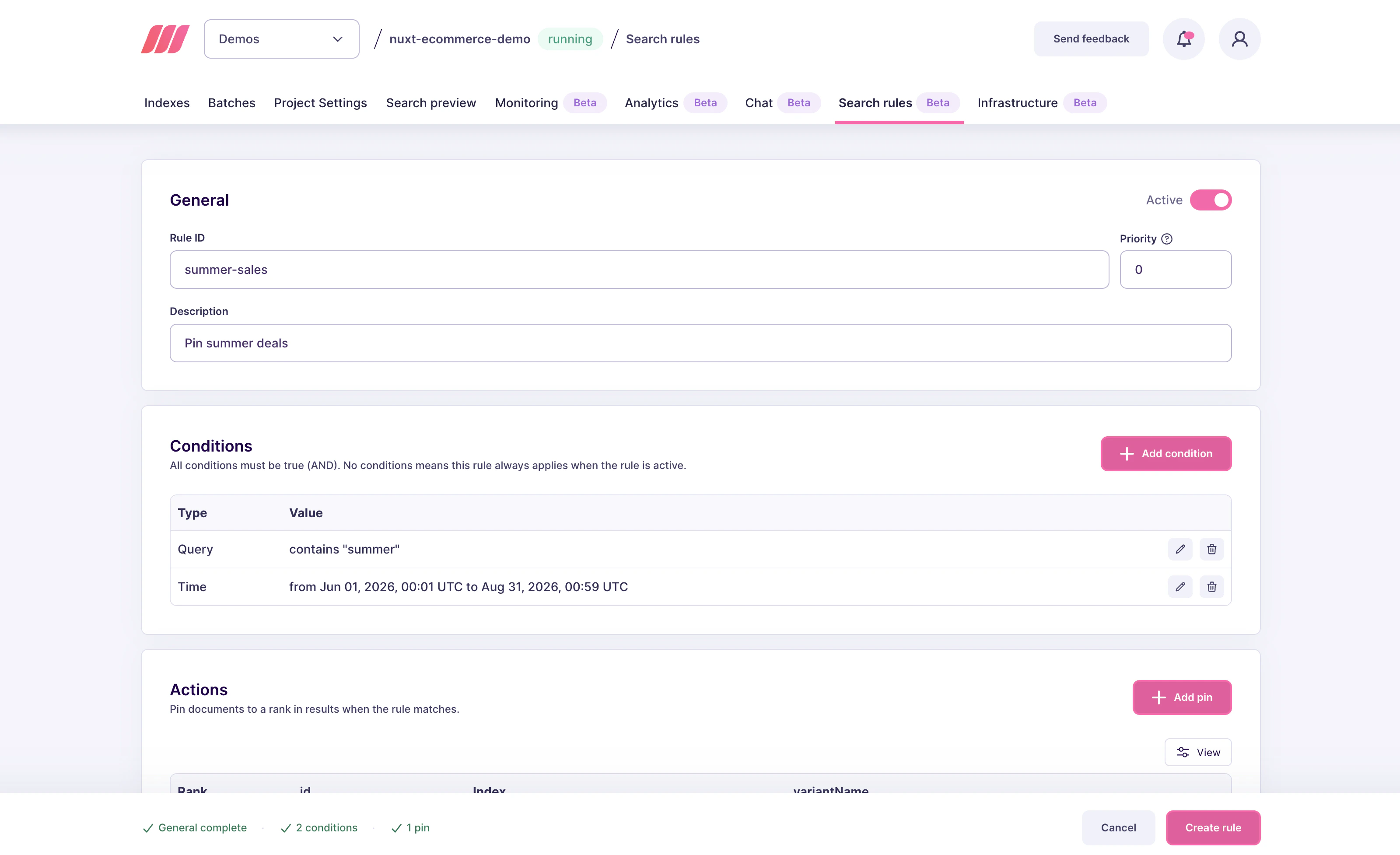
Click **New rule**. Give it a Rule ID such as `summer-sale-2026`, add a description noting the campaign dates, and keep the **Active** toggle on. You can leave **Priority** at `0` unless another rule competes for the same query.
 ### 2. Add the query condition
In the **Conditions** block, click **Add condition** and pick **Query contains**. Enter `summer sale` as the substring. Click **Add condition** to save.
Because `contains` is a case-insensitive literal substring match, the rule also fires for "Summer Sale", "SUMMER SALE discount", and "buy during the summer sale". It does not fire for "summer" or "sale" on their own.
### 3. Add the time condition
Click **Add condition** again and pick **Time window**. Enter:
* **Start**: `2026-06-01T00:00:00Z`
* **End**: `2026-06-30T23:59:59Z`
Timestamps are in UTC. Convert your campaign's local time window before entering them (for example, `2026-06-01T00:00:00-04:00` in New York becomes `2026-06-01T04:00:00Z` in UTC).
Click **Add condition** to save.
### 2. Add the query condition
In the **Conditions** block, click **Add condition** and pick **Query contains**. Enter `summer sale` as the substring. Click **Add condition** to save.
Because `contains` is a case-insensitive literal substring match, the rule also fires for "Summer Sale", "SUMMER SALE discount", and "buy during the summer sale". It does not fire for "summer" or "sale" on their own.
### 3. Add the time condition
Click **Add condition** again and pick **Time window**. Enter:
* **Start**: `2026-06-01T00:00:00Z`
* **End**: `2026-06-30T23:59:59Z`
Timestamps are in UTC. Convert your campaign's local time window before entering them (for example, `2026-06-01T00:00:00-04:00` in New York becomes `2026-06-01T04:00:00Z` in UTC).
Click **Add condition** to save.
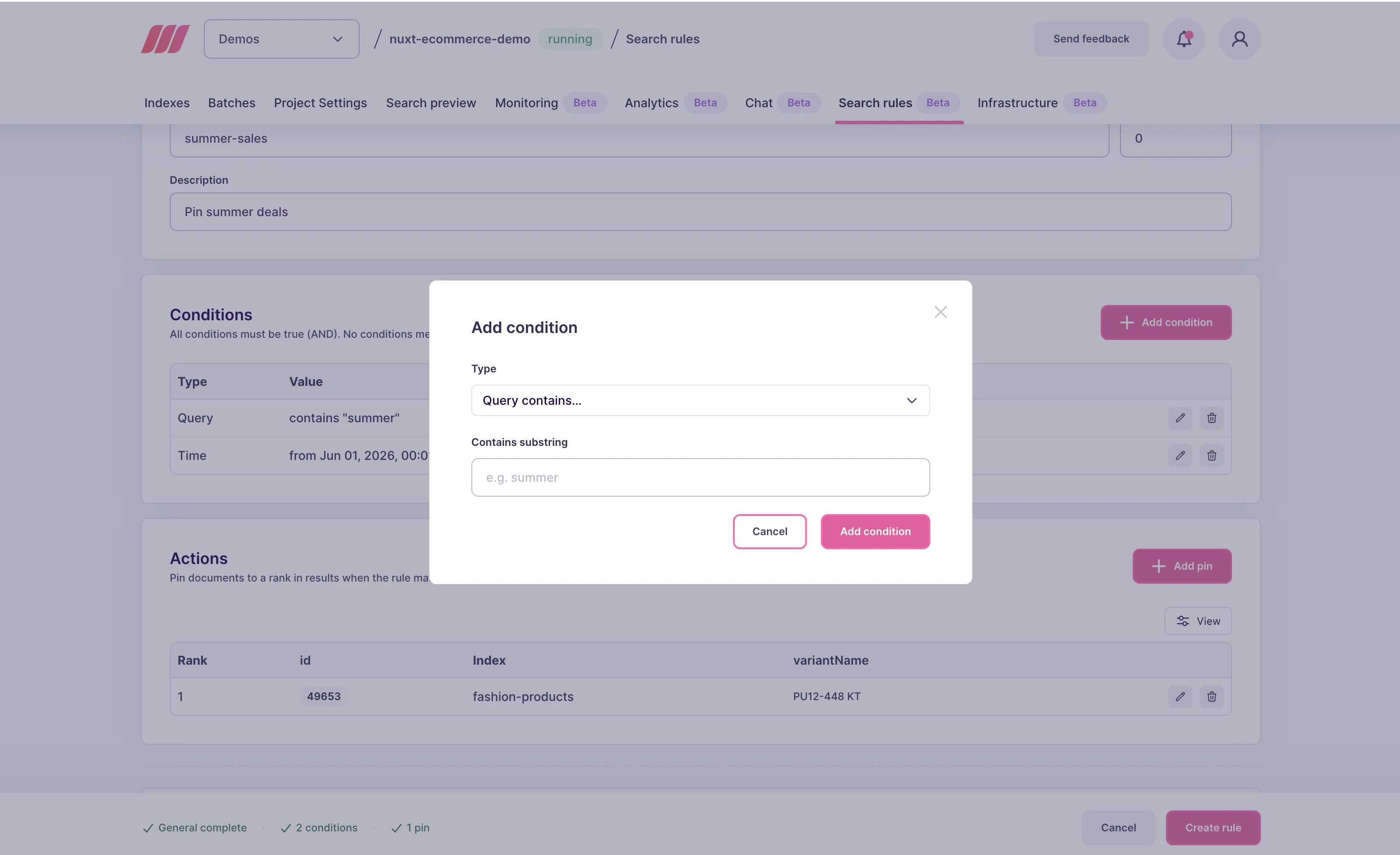 The **Conditions** block now shows two entries. Both conditions are combined with `AND`, so the rule only fires when the query matches **and** the current time is inside the window.
### 4. Pin the campaign page
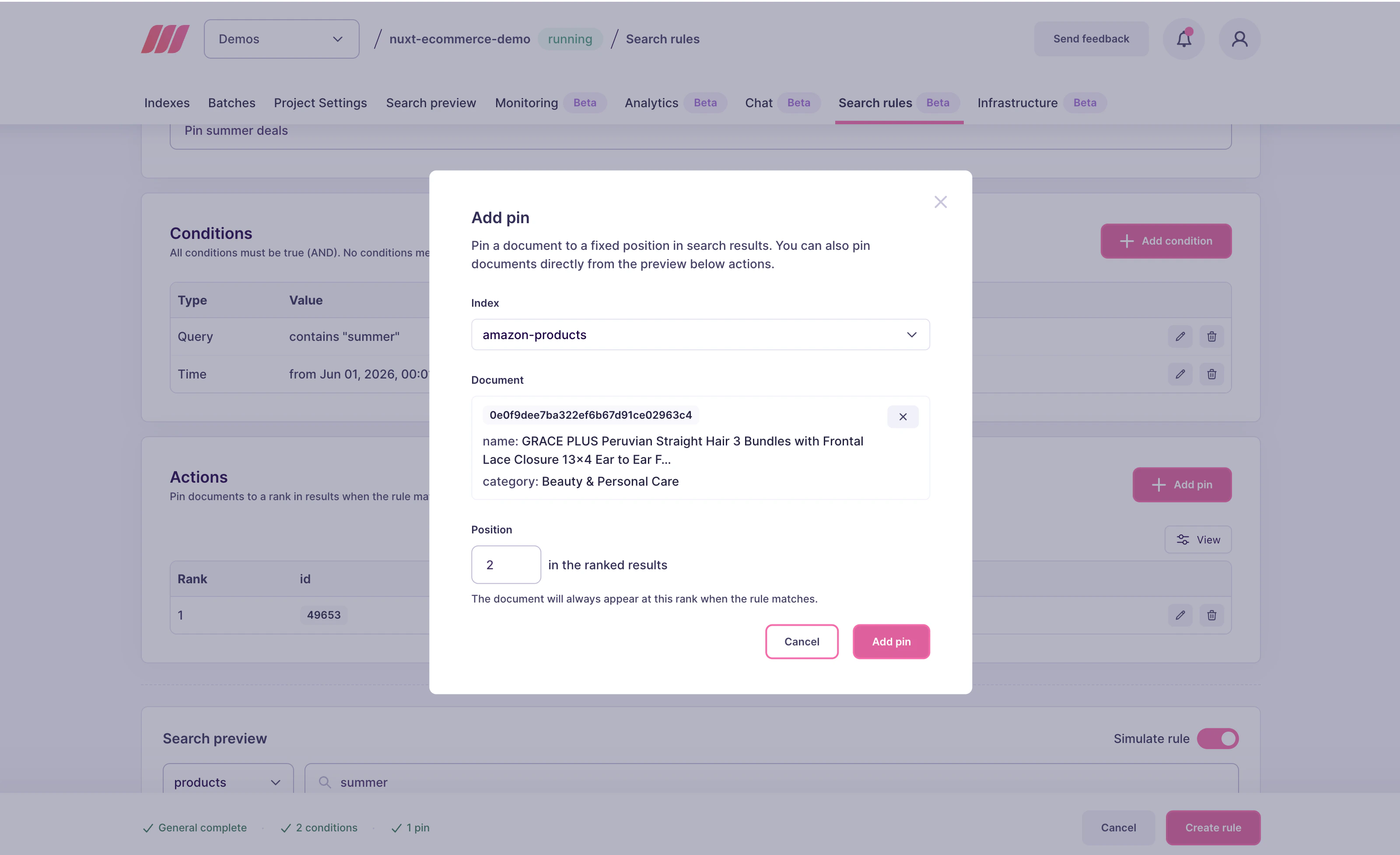
In the **Actions** block, click **Add pin**:
* **Index**: `products`
* **Document**: `summer-sale-landing-page`
* **Position**: `0`
Click **Add pin** to save.
The **Conditions** block now shows two entries. Both conditions are combined with `AND`, so the rule only fires when the query matches **and** the current time is inside the window.
### 4. Pin the campaign page
In the **Actions** block, click **Add pin**:
* **Index**: `products`
* **Document**: `summer-sale-landing-page`
* **Position**: `0`
Click **Add pin** to save.
 ### 5. Save the rule
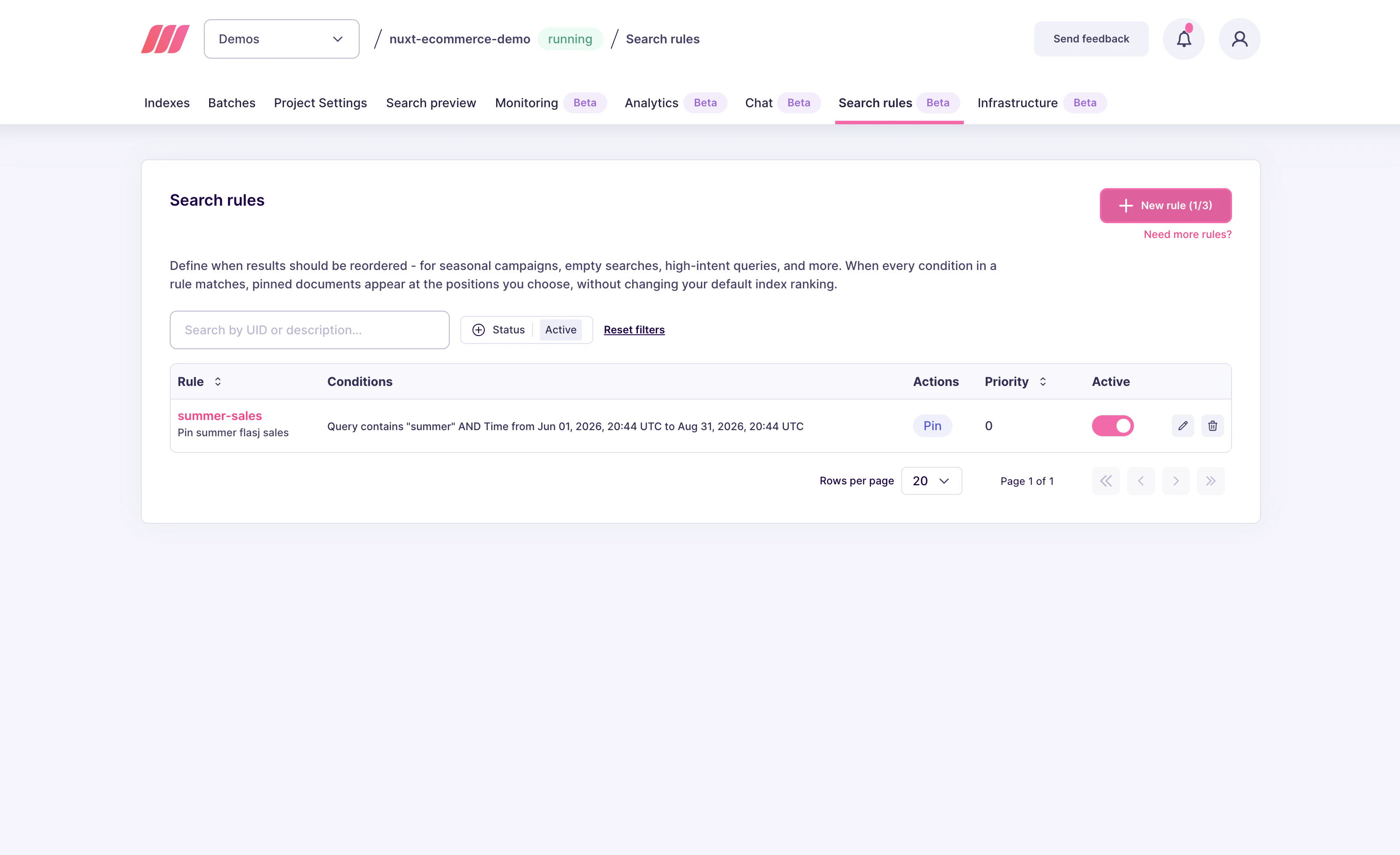
Click **Create rule**. The rule now appears in the Search rules list. Before June 1 and after June 30, the rule still exists but stays silent because the time condition never matches.
### 5. Save the rule
Click **Create rule**. The rule now appears in the Search rules list. Before June 1 and after June 30, the rule still exists but stays silent because the time condition never matches.
 ## Set up from the API
Send a `PATCH /dynamic-search-rules/summer-sale-2026`:
```json theme={null}
{
"description": "Promote the summer sale landing page during June 2026",
"active": true,
"conditions": [
{ "scope": "query", "contains": "summer sale" },
{ "scope": "time", "start": "2026-06-01T00:00:00Z", "end": "2026-06-30T23:59:59Z" }
],
"actions": [
{
"selector": { "indexUid": "products", "id": "summer-sale-landing-page" },
"action": { "type": "pin", "position": 0 }
}
]
}
```
* `scope: "time"` takes a `start` and an `end` timestamp in ISO 8601 UTC format.
* You can omit either `start` or `end` to create an open-ended window. For example, a rule with only `end` expires at that date but applies immediately. A rule with only `start` activates at that date and never expires until you remove it.
* Multiple conditions are combined with `AND`. You cannot express "this query between these dates OR that query between other dates" in a single rule, create two rules with different `uid` values instead.
## How Meilisearch evaluates the rule
On every search request, Meilisearch:
1. Reads the current UTC time from the server
2. Checks each active rule. For a rule with a time condition, it verifies that the current time is between `start` and `end`
3. If any condition in the rule fails, the rule is skipped for this request
4. Otherwise, the rule fires and the pin is inserted
The check happens at search time, not at rule creation time. There is no scheduler to configure and no background job to monitor: a rule that starts tomorrow simply stays silent today and starts firing tomorrow.
## Variations and tips
* **Always-on promotions with an expiry safety net**: if you want a rule to fire immediately but still auto-expire, set `start` in the past (or omit it) and `end` to the cutoff date. This is a good pattern for time-limited editorial pushes that you want to guarantee will disappear.
* **Overlapping campaigns**: if two rules target similar queries during overlapping windows, set different `priority` values so the winner is deterministic. Lower numbers win.
* **Timezones and daylight saving**: always convert to UTC. Relying on local time in the stored timestamps causes subtle bugs across daylight-saving transitions.
* **Deleting versus pausing versus expiring**: you can let the time window expire naturally (simplest), flip `active` to `false` to stop it early without deleting ([see Pause a rule](/capabilities/search_rules/how_to/pause_a_rule)), or `DELETE` the rule entirely if you never want to reuse it.
* **Auditing upcoming promotions**: use `POST /dynamic-search-rules` with a `uid` pattern filter to find every scheduled rule before a campaign starts. See [List or filter existing rules](/capabilities/search_rules/how_to/list_and_filter_rules).
## Next steps
Build a rule without a time window
Review the rules that will fire or expire soon
Stop a rule early without deleting it
Learn how pins interact with ranking, filters, and precedence
Full request and response shapes
## Set up from the API
Send a `PATCH /dynamic-search-rules/summer-sale-2026`:
```json theme={null}
{
"description": "Promote the summer sale landing page during June 2026",
"active": true,
"conditions": [
{ "scope": "query", "contains": "summer sale" },
{ "scope": "time", "start": "2026-06-01T00:00:00Z", "end": "2026-06-30T23:59:59Z" }
],
"actions": [
{
"selector": { "indexUid": "products", "id": "summer-sale-landing-page" },
"action": { "type": "pin", "position": 0 }
}
]
}
```
* `scope: "time"` takes a `start` and an `end` timestamp in ISO 8601 UTC format.
* You can omit either `start` or `end` to create an open-ended window. For example, a rule with only `end` expires at that date but applies immediately. A rule with only `start` activates at that date and never expires until you remove it.
* Multiple conditions are combined with `AND`. You cannot express "this query between these dates OR that query between other dates" in a single rule, create two rules with different `uid` values instead.
## How Meilisearch evaluates the rule
On every search request, Meilisearch:
1. Reads the current UTC time from the server
2. Checks each active rule. For a rule with a time condition, it verifies that the current time is between `start` and `end`
3. If any condition in the rule fails, the rule is skipped for this request
4. Otherwise, the rule fires and the pin is inserted
The check happens at search time, not at rule creation time. There is no scheduler to configure and no background job to monitor: a rule that starts tomorrow simply stays silent today and starts firing tomorrow.
## Variations and tips
* **Always-on promotions with an expiry safety net**: if you want a rule to fire immediately but still auto-expire, set `start` in the past (or omit it) and `end` to the cutoff date. This is a good pattern for time-limited editorial pushes that you want to guarantee will disappear.
* **Overlapping campaigns**: if two rules target similar queries during overlapping windows, set different `priority` values so the winner is deterministic. Lower numbers win.
* **Timezones and daylight saving**: always convert to UTC. Relying on local time in the stored timestamps causes subtle bugs across daylight-saving transitions.
* **Deleting versus pausing versus expiring**: you can let the time window expire naturally (simplest), flip `active` to `false` to stop it early without deleting ([see Pause a rule](/capabilities/search_rules/how_to/pause_a_rule)), or `DELETE` the rule entirely if you never want to reuse it.
* **Auditing upcoming promotions**: use `POST /dynamic-search-rules` with a `uid` pattern filter to find every scheduled rule before a campaign starts. See [List or filter existing rules](/capabilities/search_rules/how_to/list_and_filter_rules).
## Next steps
Build a rule without a time window
Review the rules that will fire or expire soon
Stop a rule early without deleting it
Learn how pins interact with ranking, filters, and precedence
Full request and response shapes