> ## Documentation Index
> Fetch the complete documentation index at: https://www.meilisearch.com/docs/llms.txt
> Use this file to discover all available pages before exploring further.
# Pin one result for a query
> Pin a single document to a fixed position whenever a search query contains a specific substring.
Pinning one document for a known query is the most common search rule pattern. Use it when you know exactly which document users should see when they search for a particular term, such as pinning your "Billing workspace overview" article for "invoice" queries, or a password-reset guide for "password" queries. The pinned document appears on top of the organic results without changing how the rest of the results are ranked.
Search rules are experimental. Enable the `dynamicSearchRules` flag with `PATCH /experimental-features` before creating rules. See [Getting started](/capabilities/search_rules/getting_started#enable-the-experimental-flag).
## Example scenario
You run a help center on a `support` index. Users often type "invoice" when they are looking for the "Billing workspace overview" article (document `id: "billing-workspace-overview"`). Currently, that article ranks third organically. You want it to appear first whenever the word "invoice" appears in the query.
A single search rule with one condition and one pin action covers this.
## Set up from the Meilisearch Cloud dashboard
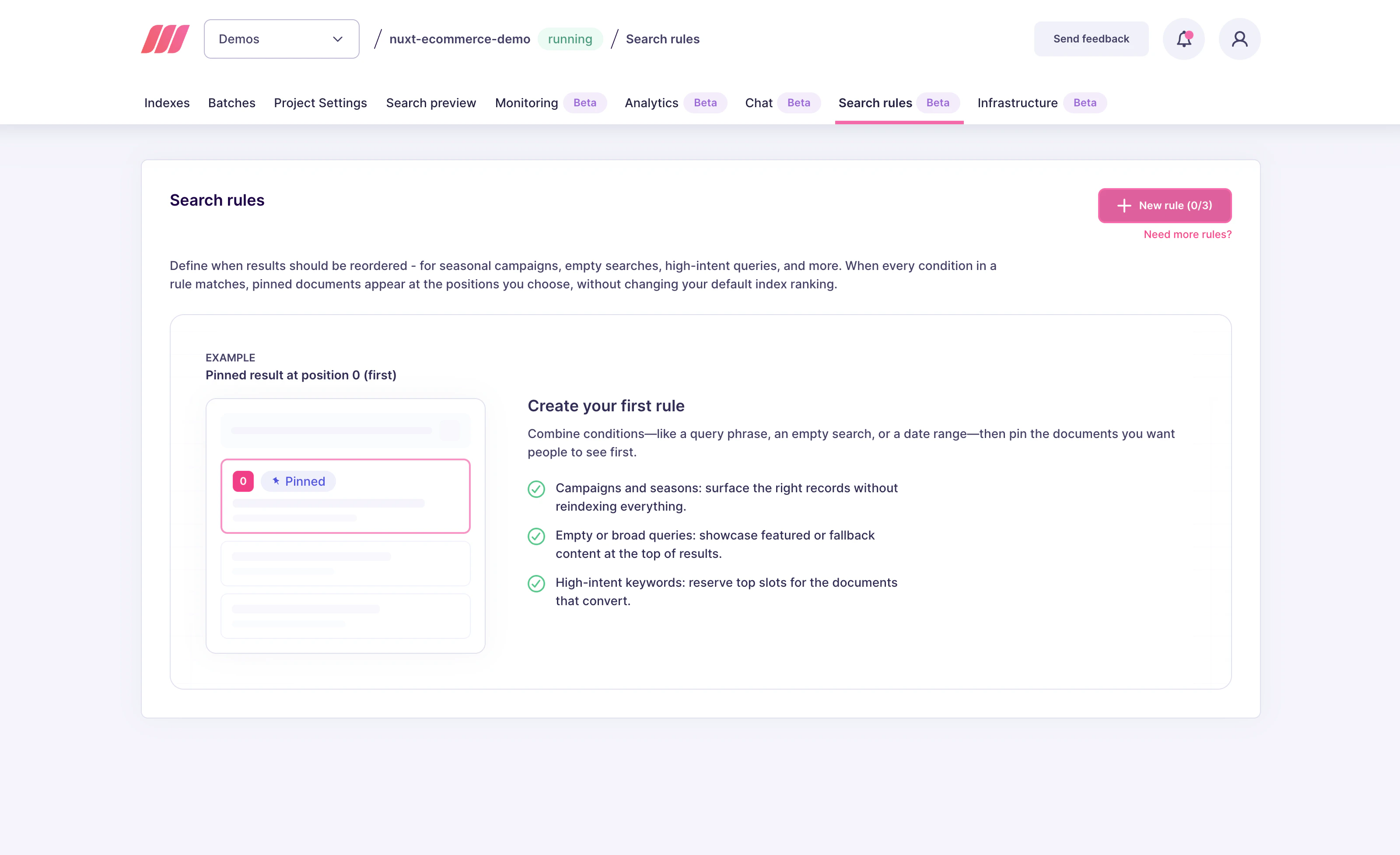
Open your project in the [Meilisearch Cloud dashboard](https://cloud.meilisearch.com) and select the **Search rules** tab.
### 1. Create a new rule
Click **New rule** in the top-right corner.
 ### 2. Fill in the rule's general information
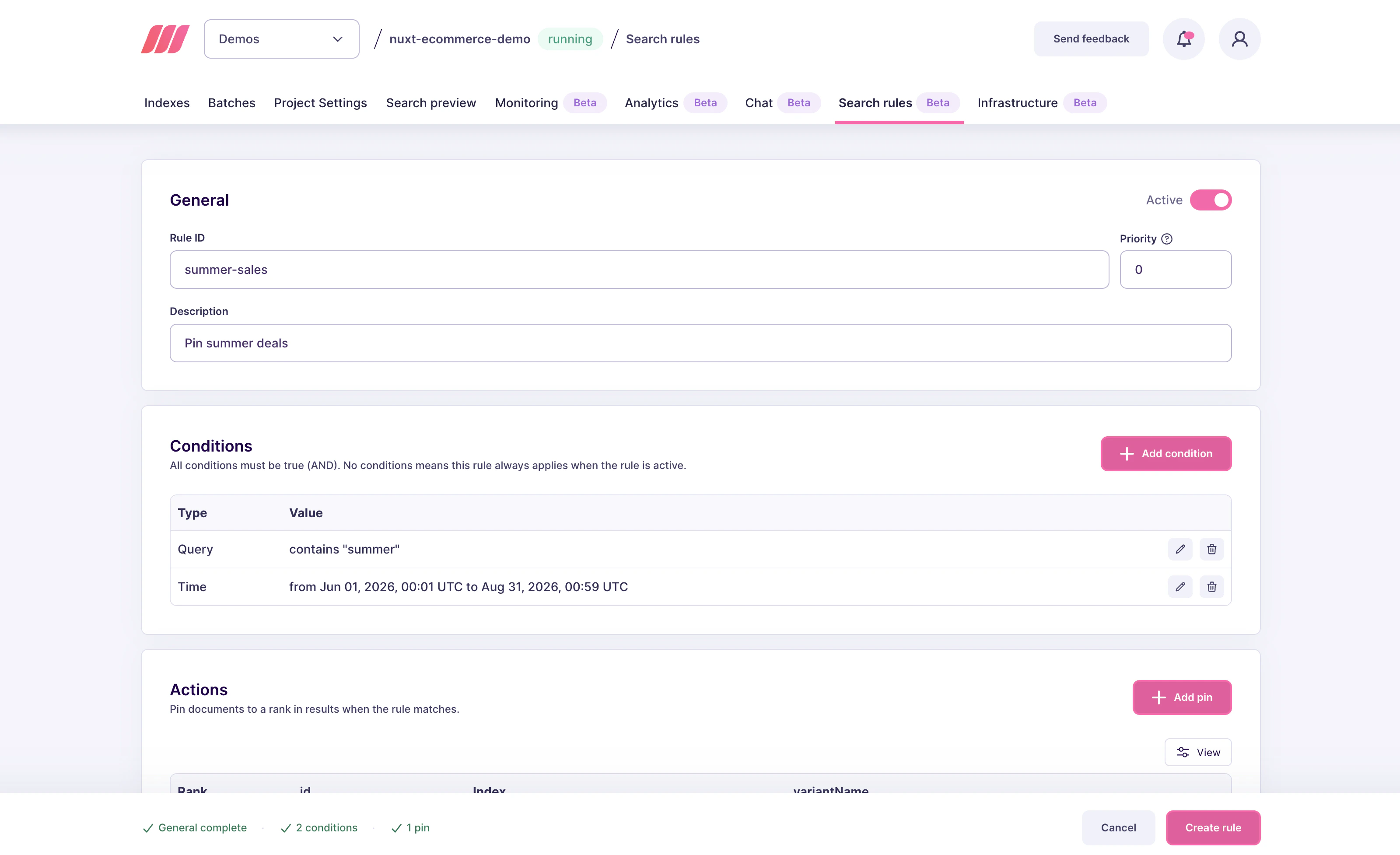
Give the rule a descriptive **Rule ID**, for example `invoice-help`. This value becomes the rule's `uid` in the API and cannot be changed later without recreating the rule. Add a short **Description** so your team knows what the rule does. Leave **Priority** at `0` unless you already have a competing rule, and keep the **Active** toggle on so the rule applies at search time.
### 2. Fill in the rule's general information
Give the rule a descriptive **Rule ID**, for example `invoice-help`. This value becomes the rule's `uid` in the API and cannot be changed later without recreating the rule. Add a short **Description** so your team knows what the rule does. Leave **Priority** at `0` unless you already have a competing rule, and keep the **Active** toggle on so the rule applies at search time.
 ### 3. Add a query condition
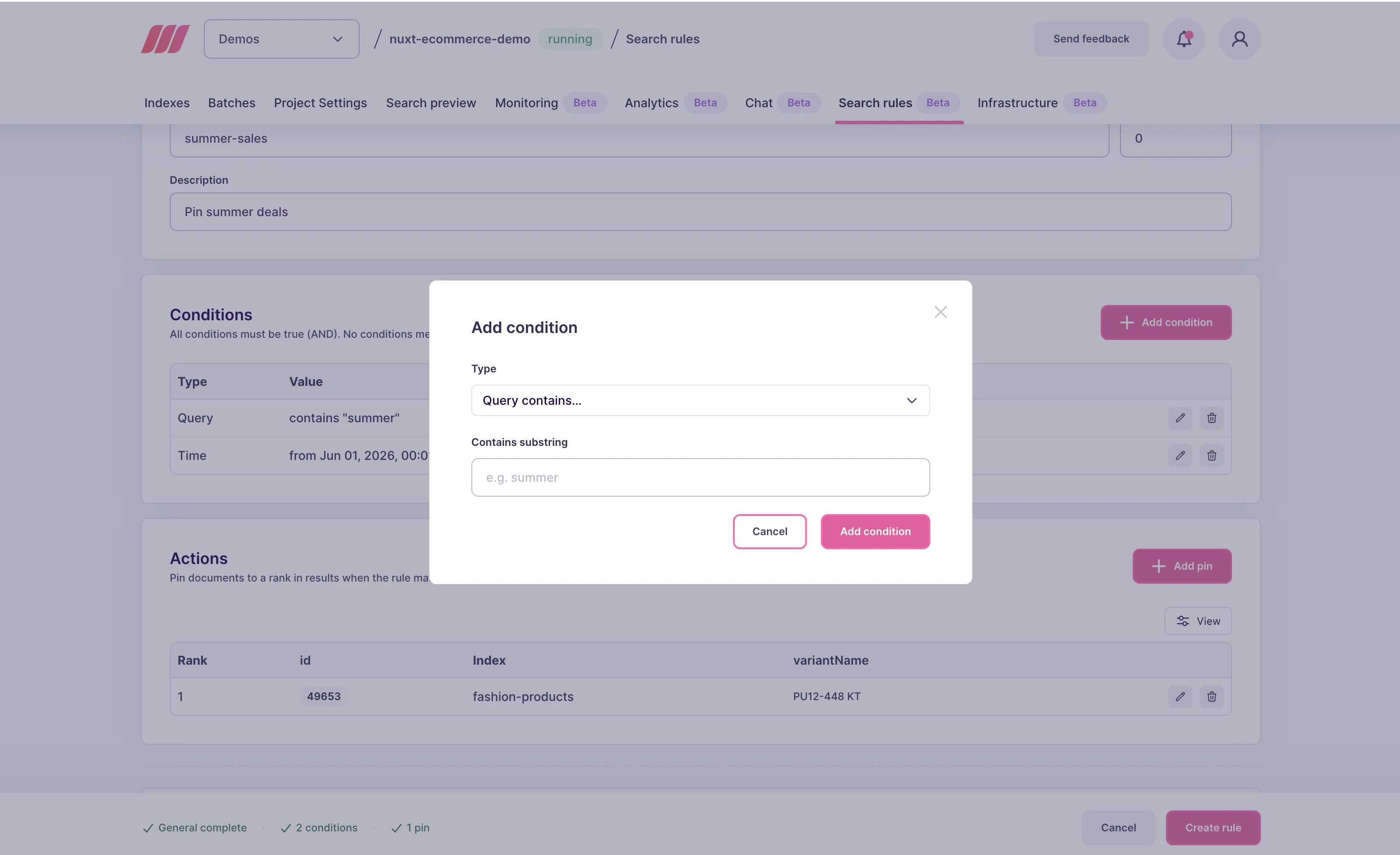
In the **Conditions** block, click **Add condition**. In the dialog:
* Set **Type** to `Query contains`
* Enter `invoice` in the **Contains substring** field
Click **Add condition** to save.
### 3. Add a query condition
In the **Conditions** block, click **Add condition**. In the dialog:
* Set **Type** to `Query contains`
* Enter `invoice` in the **Contains substring** field
Click **Add condition** to save.
 The match is case-insensitive and accent-insensitive, so the rule fires for "Invoice", "INVOICE", "invoice settings", and any other query that contains "invoice" as a substring. It does not fire for unrelated words that happen to share letters (for example, "voice").
### 4. Pin the target document
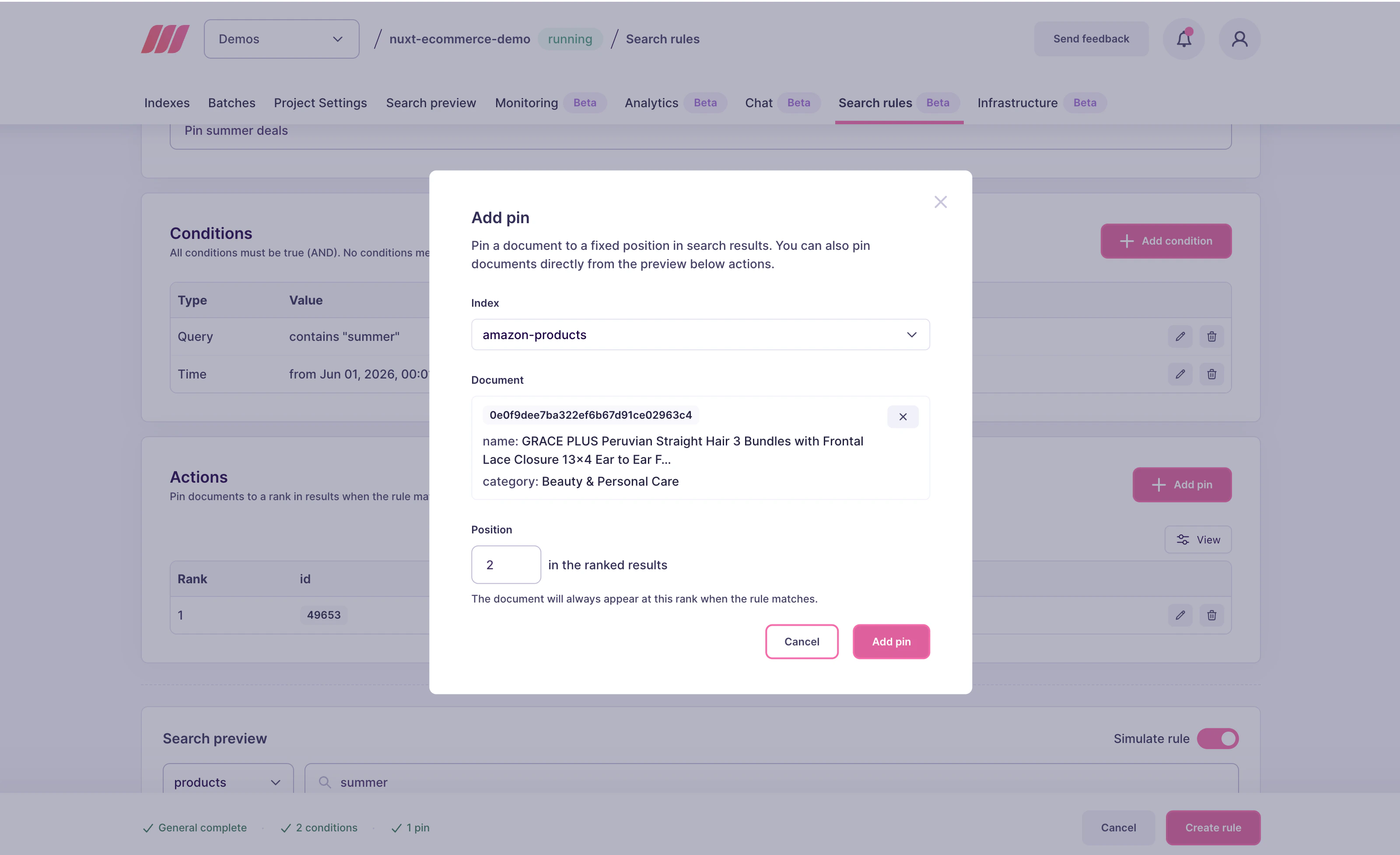
In the **Actions** block, click **Add pin**. In the dialog:
* Set **Index** to the index that holds the document, for example `support`
* Pick the document under **Document** (here, `billing-workspace-overview`)
* Set **Position** to `0` so the document lands in the first result slot
Click **Add pin**.
The match is case-insensitive and accent-insensitive, so the rule fires for "Invoice", "INVOICE", "invoice settings", and any other query that contains "invoice" as a substring. It does not fire for unrelated words that happen to share letters (for example, "voice").
### 4. Pin the target document
In the **Actions** block, click **Add pin**. In the dialog:
* Set **Index** to the index that holds the document, for example `support`
* Pick the document under **Document** (here, `billing-workspace-overview`)
* Set **Position** to `0` so the document lands in the first result slot
Click **Add pin**.
 ### 5. Save the rule
Back on the rule editor, confirm that the Conditions and Actions sections show the entries you just created. Click **Create rule** in the bottom-right corner.
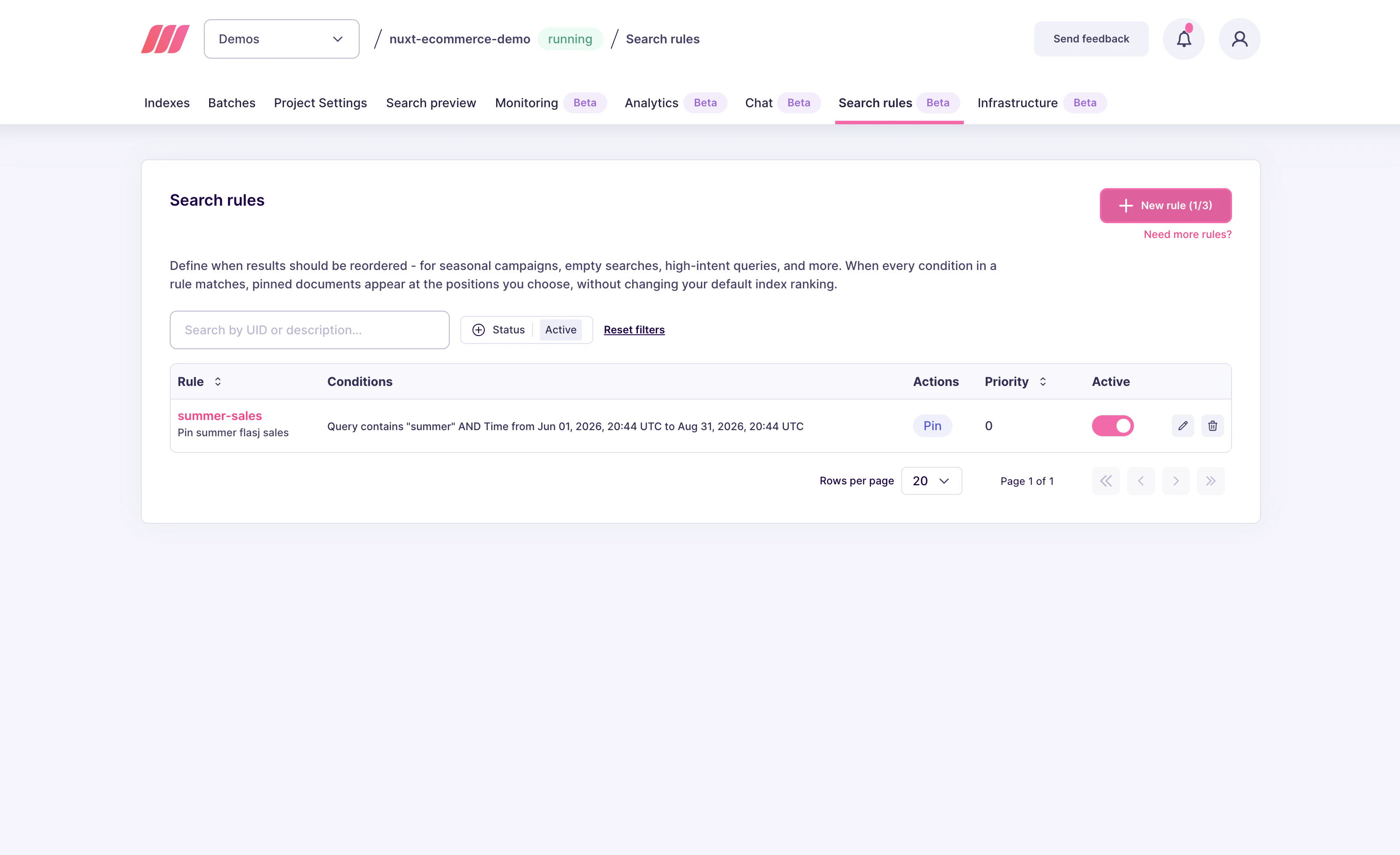
The rule now appears in the Search rules list. You can edit it, deactivate it, or delete it from this view later.
### 5. Save the rule
Back on the rule editor, confirm that the Conditions and Actions sections show the entries you just created. Click **Create rule** in the bottom-right corner.
The rule now appears in the Search rules list. You can edit it, deactivate it, or delete it from this view later.
 ## Set up from the API
Send a `PATCH /dynamic-search-rules/invoice-help` with the following body:
```json theme={null}
{
"description": "Promote billing help for invoice searches",
"active": true,
"conditions": [
{ "scope": "query", "contains": "invoice" }
],
"actions": [
{
"selector": { "indexUid": "support", "id": "billing-workspace-overview" },
"action": { "type": "pin", "position": 0 }
}
]
}
```
* `uid` comes from the URL (`invoice-help`), not from the body.
* `position: 0` targets the first result slot.
* `indexUid` in the selector scopes the pin to the document living in the `support` index. If you omit it, Meilisearch treats the pin as a cross-index reference.
* The route is an upsert: it returns `201 Created` on the first write and `200 OK` on subsequent updates.
## How Meilisearch evaluates the rule
At search time, Meilisearch:
1. Matches the search query against every active rule
2. For each matching rule, verifies that the pinned document exists and passes the current search filters
3. Inserts the surviving pinned document at the requested position
4. Removes duplicates from the final result set
If the pinned document is missing from the index or filtered out by the search request, Meilisearch drops the pin instead of forcing the document into the response. Organic results fill the rest of the positions.
## Variations and tips
* **Shorter substrings for broader matches**: to fire on both "invoice" and "invoices", use `invoic` as the substring.
* **One substring per rule**: `contains` accepts a single substring. If you want the same pin for multiple unrelated queries, create a separate rule for each substring.
* **Cross-checking with filters**: if your search uses strict visibility filters, test the rule against a realistic query to confirm the pinned document is not filtered out.
* **Regex, wildcards, or fuzzy matching**: not supported. See [matching behavior of contains](/capabilities/search_rules/advanced/pinning_behavior#matching-behavior-of-contains).
## Next steps
Add multiple pin actions to the same rule
Combine a query condition with a time window
Learn how pins interact with ranking, filters, and precedence
Temporarily disable a rule without deleting it
Full request and response shapes
## Set up from the API
Send a `PATCH /dynamic-search-rules/invoice-help` with the following body:
```json theme={null}
{
"description": "Promote billing help for invoice searches",
"active": true,
"conditions": [
{ "scope": "query", "contains": "invoice" }
],
"actions": [
{
"selector": { "indexUid": "support", "id": "billing-workspace-overview" },
"action": { "type": "pin", "position": 0 }
}
]
}
```
* `uid` comes from the URL (`invoice-help`), not from the body.
* `position: 0` targets the first result slot.
* `indexUid` in the selector scopes the pin to the document living in the `support` index. If you omit it, Meilisearch treats the pin as a cross-index reference.
* The route is an upsert: it returns `201 Created` on the first write and `200 OK` on subsequent updates.
## How Meilisearch evaluates the rule
At search time, Meilisearch:
1. Matches the search query against every active rule
2. For each matching rule, verifies that the pinned document exists and passes the current search filters
3. Inserts the surviving pinned document at the requested position
4. Removes duplicates from the final result set
If the pinned document is missing from the index or filtered out by the search request, Meilisearch drops the pin instead of forcing the document into the response. Organic results fill the rest of the positions.
## Variations and tips
* **Shorter substrings for broader matches**: to fire on both "invoice" and "invoices", use `invoic` as the substring.
* **One substring per rule**: `contains` accepts a single substring. If you want the same pin for multiple unrelated queries, create a separate rule for each substring.
* **Cross-checking with filters**: if your search uses strict visibility filters, test the rule against a realistic query to confirm the pinned document is not filtered out.
* **Regex, wildcards, or fuzzy matching**: not supported. See [matching behavior of contains](/capabilities/search_rules/advanced/pinning_behavior#matching-behavior-of-contains).
## Next steps
Add multiple pin actions to the same rule
Combine a query condition with a time window
Learn how pins interact with ranking, filters, and precedence
Temporarily disable a rule without deleting it
Full request and response shapes