> ## Documentation Index
> Fetch the complete documentation index at: https://www.meilisearch.com/docs/llms.txt
> Use this file to discover all available pages before exploring further.
# Pin several results in a fixed order
> Pin more than one document to specific positions for the same query by combining multiple pin actions in a single rule.
Sometimes a single pinned document is not enough. When a query covers a whole topic, you might want to control the first two, three, or more result slots so the most helpful documents always appear together, in a specific order. A single rule with several pin actions covers this: each action targets one document and one position, and Meilisearch respects the order you define.
Search rules are experimental. Enable the `dynamicSearchRules` flag with `PATCH /experimental-features` before creating rules. See [Getting started](/capabilities/search_rules/getting_started#enable-the-experimental-flag).
## Example scenario
On the same `support` help center, users who type "invoice" also benefit from seeing the "Download monthly statements" guide (`id: "download-monthly-statements"`) right after the "Billing workspace overview" article. You want the two billing documents at positions `0` and `1`, with organic results filling the rest of the page.
One rule with two pin actions is enough: no need to create two separate rules for the same query condition.
## Set up from the Meilisearch Cloud dashboard
Open your project in the [Meilisearch Cloud dashboard](https://cloud.meilisearch.com) and select the **Search rules** tab.
### 1. Create or edit the rule
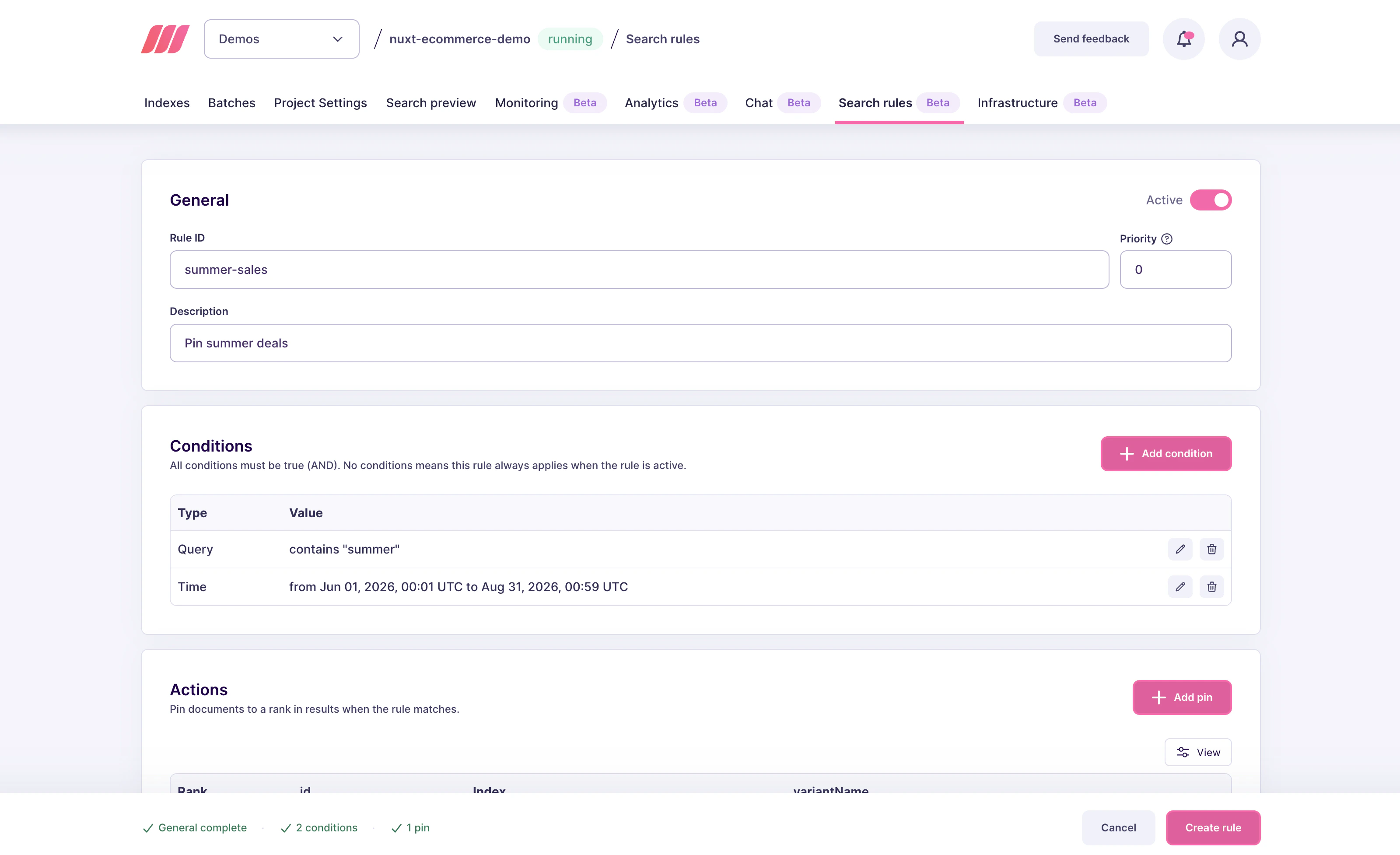
If you have already created an `invoice-help` rule (see [Pin one result for a query](/capabilities/search_rules/how_to/pin_one_result_for_query)), click it in the list to edit it. Otherwise, click **New rule** and fill in the Rule ID, Description, and Priority as usual.
 ### 2. Add the query condition
In the **Conditions** block, add a **Query contains** condition with the substring `invoice`. You only need one condition: both pins fire together whenever the query matches.
### 3. Add the first pin
In the **Actions** block, click **Add pin**. Configure:
* **Index**: `support`
* **Document**: `billing-workspace-overview`
* **Position**: `0`
Click **Add pin** to save.
### 2. Add the query condition
In the **Conditions** block, add a **Query contains** condition with the substring `invoice`. You only need one condition: both pins fire together whenever the query matches.
### 3. Add the first pin
In the **Actions** block, click **Add pin**. Configure:
* **Index**: `support`
* **Document**: `billing-workspace-overview`
* **Position**: `0`
Click **Add pin** to save.
 ### 4. Add the second pin
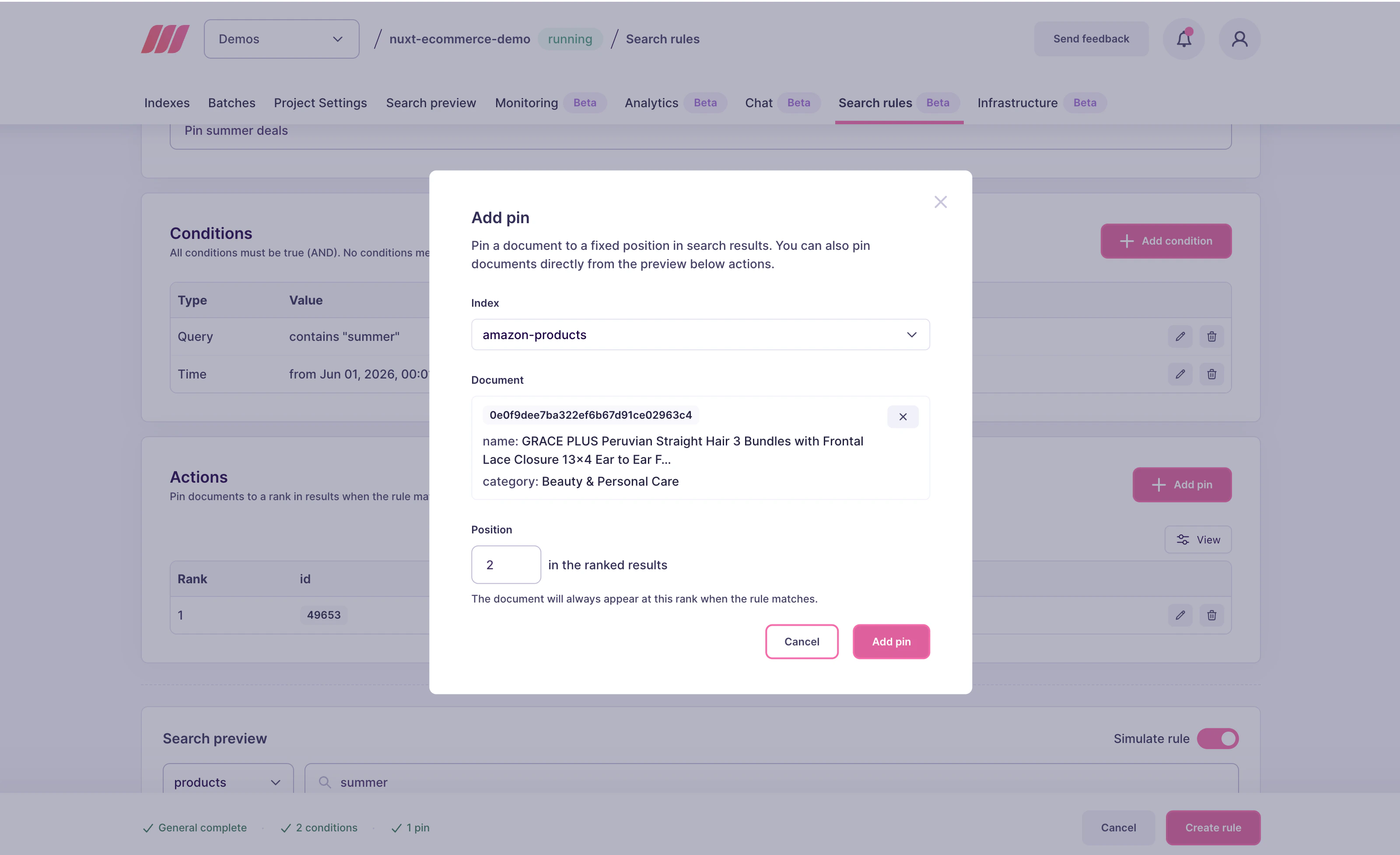
Click **Add pin** again. Configure:
* **Index**: `support`
* **Document**: `download-monthly-statements`
* **Position**: `1`
Click **Add pin** to save.
The **Actions** block now lists two pins. Meilisearch inserts them at positions `0` and `1` when the rule fires.
### 5. Save the rule
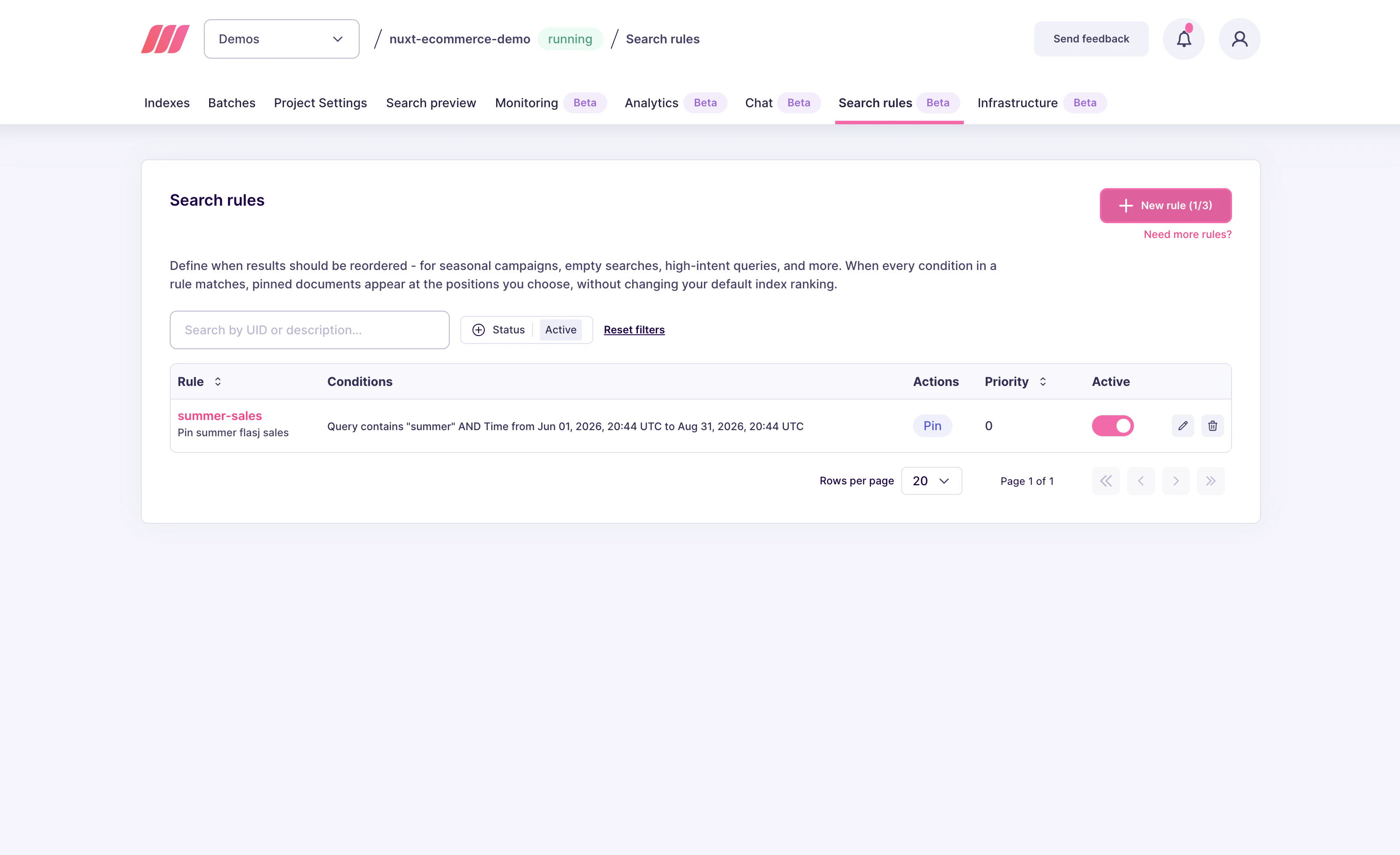
Click **Create rule** (or **Save changes** when editing). The rule appears in the Search rules list with the two pin actions visible in the row.
### 4. Add the second pin
Click **Add pin** again. Configure:
* **Index**: `support`
* **Document**: `download-monthly-statements`
* **Position**: `1`
Click **Add pin** to save.
The **Actions** block now lists two pins. Meilisearch inserts them at positions `0` and `1` when the rule fires.
### 5. Save the rule
Click **Create rule** (or **Save changes** when editing). The rule appears in the Search rules list with the two pin actions visible in the row.
 ## Set up from the API
Send a `PATCH /dynamic-search-rules/invoice-help` with two actions:
```json theme={null}
{
"description": "Show billing resources first for invoice searches",
"active": true,
"conditions": [
{ "scope": "query", "contains": "invoice" }
],
"actions": [
{
"selector": { "indexUid": "support", "id": "billing-workspace-overview" },
"action": { "type": "pin", "position": 0 }
},
{
"selector": { "indexUid": "support", "id": "download-monthly-statements" },
"action": { "type": "pin", "position": 1 }
}
]
}
```
* Positions are zero-indexed. `0` is the first slot, `1` is the second, and so on.
* Each action targets exactly one document. To pin three documents, add three actions.
* You can mix documents from different indexes by setting a different `indexUid` per action. This is useful for federated search layouts where the same rule should promote results across multiple indexes.
## How Meilisearch evaluates the rule
At search time, Meilisearch:
1. Matches the search query against every active rule
2. For each matching rule, verifies that every pinned document exists and passes the current search filters
3. Inserts the surviving pinned documents at the positions you requested
4. Fills the remaining positions with organic results and removes duplicates
If one of the pins is filtered out but the other one is not, only the surviving pin is inserted. Meilisearch does not shift the other pin to fill the gap: it stays at the position you configured, and organic results fill the vacated slot.
## Variations and tips
* **Non-contiguous positions**: nothing stops you from pinning at positions `0` and `5`. The gap between the two pins is filled with organic results. Use this when you want to interleave pinned and organic content.
* **Same document, same rule**: pinning the same document at two different positions is not useful. Meilisearch deduplicates the final result set, so the document only appears once.
* **Competing rules on the same position**: if two rules both try to pin a different document at position `0`, the rule with the lower `priority` value wins. See [Precedence between rules](/capabilities/search_rules/advanced/pinning_behavior#precedence-between-rules).
* **Large pinned lists**: pinning many documents removes relevance control over those slots. Keep pinned sets small, usually two to five documents, and let organic ranking handle the rest.
## Next steps
Start with the simplest pinning pattern
Learn how pins interact with ranking, filters, and precedence
Combine a query condition with a time window
Temporarily disable a rule without deleting it
Full request and response shapes
## Set up from the API
Send a `PATCH /dynamic-search-rules/invoice-help` with two actions:
```json theme={null}
{
"description": "Show billing resources first for invoice searches",
"active": true,
"conditions": [
{ "scope": "query", "contains": "invoice" }
],
"actions": [
{
"selector": { "indexUid": "support", "id": "billing-workspace-overview" },
"action": { "type": "pin", "position": 0 }
},
{
"selector": { "indexUid": "support", "id": "download-monthly-statements" },
"action": { "type": "pin", "position": 1 }
}
]
}
```
* Positions are zero-indexed. `0` is the first slot, `1` is the second, and so on.
* Each action targets exactly one document. To pin three documents, add three actions.
* You can mix documents from different indexes by setting a different `indexUid` per action. This is useful for federated search layouts where the same rule should promote results across multiple indexes.
## How Meilisearch evaluates the rule
At search time, Meilisearch:
1. Matches the search query against every active rule
2. For each matching rule, verifies that every pinned document exists and passes the current search filters
3. Inserts the surviving pinned documents at the positions you requested
4. Fills the remaining positions with organic results and removes duplicates
If one of the pins is filtered out but the other one is not, only the surviving pin is inserted. Meilisearch does not shift the other pin to fill the gap: it stays at the position you configured, and organic results fill the vacated slot.
## Variations and tips
* **Non-contiguous positions**: nothing stops you from pinning at positions `0` and `5`. The gap between the two pins is filled with organic results. Use this when you want to interleave pinned and organic content.
* **Same document, same rule**: pinning the same document at two different positions is not useful. Meilisearch deduplicates the final result set, so the document only appears once.
* **Competing rules on the same position**: if two rules both try to pin a different document at position `0`, the rule with the lower `priority` value wins. See [Precedence between rules](/capabilities/search_rules/advanced/pinning_behavior#precedence-between-rules).
* **Large pinned lists**: pinning many documents removes relevance control over those slots. Keep pinned sets small, usually two to five documents, and let organic ranking handle the rest.
## Next steps
Start with the simplest pinning pattern
Learn how pins interact with ranking, filters, and precedence
Combine a query condition with a time window
Temporarily disable a rule without deleting it
Full request and response shapes