> ## Documentation Index
> Fetch the complete documentation index at: https://www.meilisearch.com/docs/llms.txt
> Use this file to discover all available pages before exploring further.
# Working with tasks
> In this tutorial, you'll use the Meilisearch API to add documents to an index, and then monitor its status.
[Many Meilisearch operations are processed asynchronously](/capabilities/indexing/tasks_and_batches/async_operations) in a task. Asynchronous tasks allow you to make resource-intensive changes to your Meilisearch project without any downtime for users.
In this tutorial, you'll use the Meilisearch API to add documents to an index, and then monitor its status.
## Adding a task to the task queue
Operations that require indexing, such as adding and updating documents or changing an index's settings, will always generate a task.
Start by creating an index, then add a large number of documents to this index:
```bash cURL theme={null}
curl \
-X POST 'MEILISEARCH_URL/indexes/movies/documents'\
-H 'Content-Type: application/json' \
--data-binary @movies.json
```
```javascript JS theme={null}
const movies = require('./movies.json')
client.index('movies').addDocuments(movies).then((res) => console.log(res))
```
```python Python theme={null}
import json
json_file = open('movies.json', encoding='utf-8')
movies = json.load(json_file)
client.index('movies').add_documents(movies)
```
```php PHP theme={null}
$moviesJson = file_get_contents('movies.json');
$movies = json_decode($moviesJson);
$client->index('movies')->addDocuments($movies);
```
```java Java theme={null}
import com.meilisearch.sdk;
import org.json.JSONArray;
import java.nio.file.Files;
import java.nio.file.Path;
Path fileName = Path.of("movies.json");
String moviesJson = Files.readString(fileName);
Client client = new Client(new Config("MEILISEARCH_URL", "masterKey"));
Index index = client.index("movies");
index.addDocuments(moviesJson);
```
```ruby Ruby theme={null}
require 'json'
movies_json = File.read('movies.json')
movies = JSON.parse(movies_json)
client.index('movies').add_documents(movies)
```
```go Go theme={null}
import (
"encoding/json"
"os"
)
file, _ := os.ReadFile("movies.json")
var movies interface{}
json.Unmarshal([]byte(file), &movies)
client.Index("movies").AddDocuments(&movies, nil)
```
```csharp C# theme={null}
// Make sure to add this using to your code
using System.IO;
var jsonDocuments = await File.ReadAllTextAsync("movies.json");
await client.Index("movies").AddDocumentsJsonAsync(jsonDocuments);
```
```rust Rust theme={null}
use meilisearch_sdk::{
indexes::*,
client::*,
search::*,
settings::*
};
use serde::{Serialize, Deserialize};
use std::{io::prelude::*, fs::File};
use futures::executor::block_on;
fn main() { block_on(async move {
let client = Client::new("MEILISEARCH_URL", Some("masterKey"));
// reading and parsing the file
let mut file = File::open("movies.json")
.unwrap();
let mut content = String::new();
file
.read_to_string(&mut content)
.unwrap();
let movies_docs: Vec = serde_json::from_str(&content)
.unwrap();
// adding documents
client
.index("movies")
.add_documents(&movies_docs, None)
.await
.unwrap();
})}
```
```swift Swift theme={null}
let path = Bundle.main.url(forResource: "movies", withExtension: "json")!
let documents: Data = try Data(contentsOf: path)
client.index("movies").addDocuments(documents: documents) { (result) in
switch result {
case .success(let task):
print(task)
case .failure(let error):
print(error)
}
}
```
```dart Dart theme={null}
// import 'dart:io';
// import 'dart:convert';
final json = await File('movies.json').readAsString();
await client.index('movies').addDocumentsJson(json);
```
Instead of processing your request immediately, Meilisearch will add it to a queue and return a summarized task object:
```json theme={null}
{
"taskUid": 0,
"indexUid": "movies",
"status": "enqueued",
"type": "documentAdditionOrUpdate",
"enqueuedAt": "2021-08-11T09:25:53.000000Z"
}
```
The summarized task object is confirmation your request has been accepted. It also gives you information you can use to monitor the status of your request, such as the `taskUid`.
You can add documents to a new Meilisearch Cloud index using the Cloud interface. To get the `taskUid` of this task, visit the "Task" overview and look for a "Document addition or update" task associated with your newly created index.
## Monitoring task status
Meilisearch processes tasks in the order they were added to the queue. You can check the status of a task using the Meilisearch Cloud interface or the Meilisearch API.
### Monitoring task status in the Meilisearch Cloud interface
Log into your [Meilisearch Cloud](https://meilisearch.com/cloud) account and navigate to your project. Click the "Tasks" link in the project menu:
 This will lead you to the task overview, which shows a list of all batches enqueued, processing, and completed in your project:
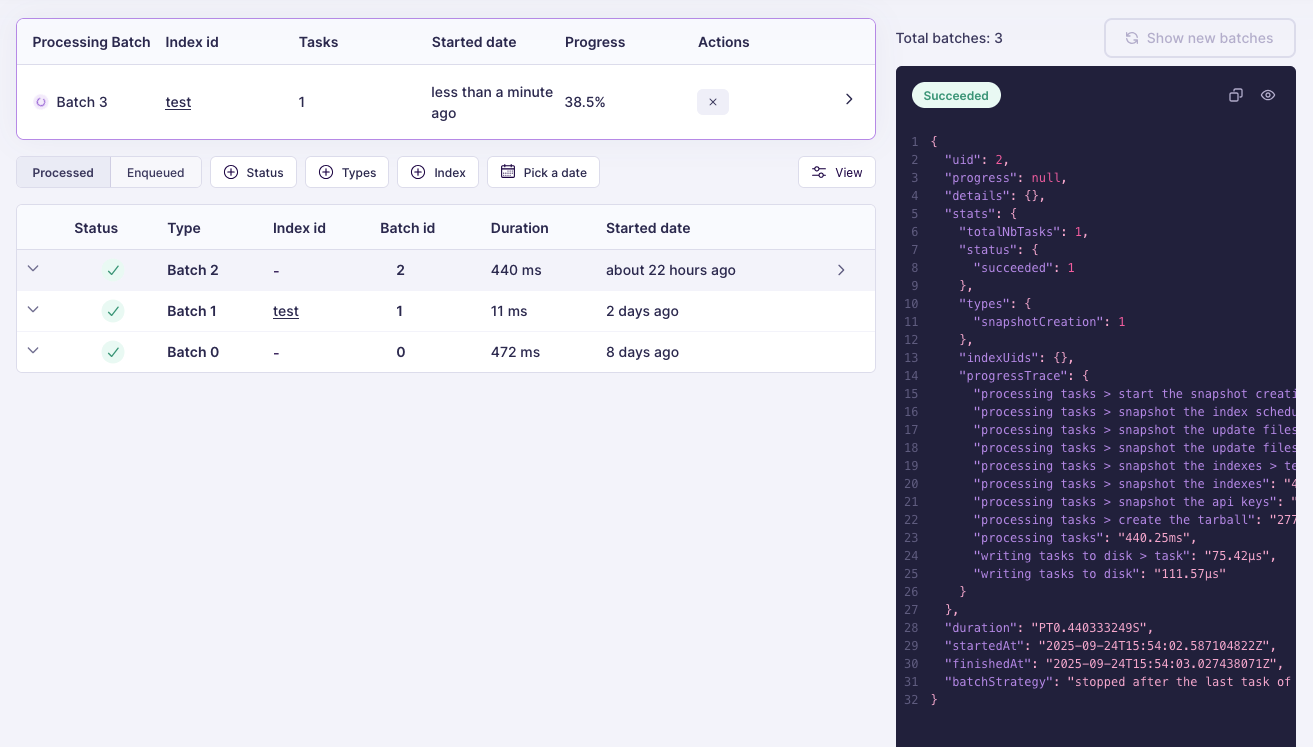 All Meilisearch tasks are processed in batches. When the batch containing your task changes its `status` to `succeeded`, Meilisearch has finished processing your request.
If the `status` changes to `failed`, Meilisearch was not able to fulfill your request. Check the object's `error` field for more information.
### Monitoring task status with the Meilisearch API
Use the `taskUid` from your request's response to check the status of a task:
```bash cURL theme={null}
curl \
-X GET 'MEILISEARCH_URL/tasks/1'
```
```javascript JS theme={null}
client.tasks.getTask(1)
```
```python Python theme={null}
client.get_task(1)
```
```php PHP theme={null}
$client->getTask(1);
```
```java Java theme={null}
client.getTask(1);
```
```ruby Ruby theme={null}
client.task(1)
```
```go Go theme={null}
client.GetTask(1);
```
```csharp C# theme={null}
TaskInfo task = await client.GetTaskAsync(1);
```
```rust Rust theme={null}
let task: Task = client
.get_task(1)
.await
.unwrap();
```
```swift Swift theme={null}
client.getTask(taskUid: 1) { (result) in
switch result {
case .success(let task):
print(task)
case .failure(let error):
print(error)
}
}
```
```dart Dart theme={null}
await client.getTask(1);
```
This will return the full task object:
```json theme={null}
{
"uid": 4,
"indexUid" :"movie",
"status": "succeeded",
"type": "documentAdditionOrUpdate",
"canceledBy": null,
"details": {
…
},
"error": null,
"duration": "PT0.001192S",
"enqueuedAt": "2022-08-04T12:28:15.159167Z",
"startedAt": "2022-08-04T12:28:15.161996Z",
"finishedAt": "2022-08-04T12:28:15.163188Z"
}
```
If the task is still `enqueued` or `processing`, wait a few moments and query the database once again. You may also [set up a webhook listener](/reference/api/management/list-webhooks).
When `status` changes to `succeeded`, Meilisearch has finished processing your request.
If the task `status` changes to `failed`, Meilisearch was not able to fulfill your request. Check the task object's `error` field for more information.
### Interpreting timestamps and `duration`
A task object includes three timestamp fields, each formatted as an RFC 3339 date. Each field remains `null` until the task reaches the corresponding state.
| Field | Description |
| ------------ | ------------------------------------------------------------------------------------------------------------------------------------------------------- |
| `enqueuedAt` | Date and time when the task was first `enqueued`. Always present once the task exists. |
| `startedAt` | Date and time when the task began `processing`. `null` while the task is still `enqueued`. |
| `finishedAt` | Date and time when the task finished `processing`, whether it `succeeded`, `failed`, or was `canceled`. `null` until the task reaches a finished state. |
The `duration` field is formatted according to the [ISO 8601 duration format](https://en.wikipedia.org/wiki/ISO_8601#Durations) (for example, `"PT1S"` for one second). It represents the **total elapsed time the task spent in the `processing` state**. Time spent waiting in the queue is not included. `duration` is `null` until the task finishes.
### The `error` object
When a task fails, its `error` field is populated with an object describing what went wrong. For succeeded, enqueued, processing, and canceled tasks, `error` is `null`.
| Field | Description |
| --------- | ------------------------------------------------------------ |
| `message` | Human-readable description of the error. |
| `code` | The [error code](/reference/errors/error_codes). |
| `type` | The error type, for example `invalid_request` or `internal`. |
| `link` | A URL pointing to the relevant section of the documentation. |
Example `error` object returned for a failed document addition:
```json theme={null}
{
"message": "Document does not have a `:primaryKey` attribute: `:documentRepresentation`.",
"code": "missing_document_id",
"type": "invalid_request",
"link": "https://docs.meilisearch.com/errors#missing-document-id"
}
```
## Track tasks with custom metadata
You can attach a `customMetadata` query parameter to document operations. This metadata string appears in task responses and webhook payloads, making it easier to track which batch of data triggered a specific task.
```bash theme={null}
curl \
-X POST 'MEILISEARCH_URL/indexes/movies/documents?customMetadata=batch-2026-03-daily-update' \
-H 'Content-Type: application/json' \
--data-binary '[
{ "id": 1, "title": "Movie One" },
{ "id": 2, "title": "Movie Two" }
]'
```
The summarized task object returned by this request includes the metadata you specified:
```json theme={null}
{
"taskUid": 12,
"indexUid": "movies",
"status": "enqueued",
"type": "documentAdditionOrUpdate",
"customMetadata": "batch-2026-03-daily-update",
"enqueuedAt": "2026-03-21T10:00:00.000000Z"
}
```
This is particularly useful when combined with [webhooks](/reference/api/management/list-webhooks), as the metadata lets you correlate incoming webhook notifications with specific data pipelines or scheduled imports.
## Conclusion
You have seen what happens when an API request adds a task to the task queue, and how to check the status of that task. Consult the [task API reference](/reference/api/tasks/list-tasks) and the [asynchronous operations explanation](/capabilities/indexing/tasks_and_batches/async_operations) for more information on how tasks work.
All Meilisearch tasks are processed in batches. When the batch containing your task changes its `status` to `succeeded`, Meilisearch has finished processing your request.
If the `status` changes to `failed`, Meilisearch was not able to fulfill your request. Check the object's `error` field for more information.
### Monitoring task status with the Meilisearch API
Use the `taskUid` from your request's response to check the status of a task:
```bash cURL theme={null}
curl \
-X GET 'MEILISEARCH_URL/tasks/1'
```
```javascript JS theme={null}
client.tasks.getTask(1)
```
```python Python theme={null}
client.get_task(1)
```
```php PHP theme={null}
$client->getTask(1);
```
```java Java theme={null}
client.getTask(1);
```
```ruby Ruby theme={null}
client.task(1)
```
```go Go theme={null}
client.GetTask(1);
```
```csharp C# theme={null}
TaskInfo task = await client.GetTaskAsync(1);
```
```rust Rust theme={null}
let task: Task = client
.get_task(1)
.await
.unwrap();
```
```swift Swift theme={null}
client.getTask(taskUid: 1) { (result) in
switch result {
case .success(let task):
print(task)
case .failure(let error):
print(error)
}
}
```
```dart Dart theme={null}
await client.getTask(1);
```
This will return the full task object:
```json theme={null}
{
"uid": 4,
"indexUid" :"movie",
"status": "succeeded",
"type": "documentAdditionOrUpdate",
"canceledBy": null,
"details": {
…
},
"error": null,
"duration": "PT0.001192S",
"enqueuedAt": "2022-08-04T12:28:15.159167Z",
"startedAt": "2022-08-04T12:28:15.161996Z",
"finishedAt": "2022-08-04T12:28:15.163188Z"
}
```
If the task is still `enqueued` or `processing`, wait a few moments and query the database once again. You may also [set up a webhook listener](/reference/api/management/list-webhooks).
When `status` changes to `succeeded`, Meilisearch has finished processing your request.
If the task `status` changes to `failed`, Meilisearch was not able to fulfill your request. Check the task object's `error` field for more information.
### Interpreting timestamps and `duration`
A task object includes three timestamp fields, each formatted as an RFC 3339 date. Each field remains `null` until the task reaches the corresponding state.
| Field | Description |
| ------------ | ------------------------------------------------------------------------------------------------------------------------------------------------------- |
| `enqueuedAt` | Date and time when the task was first `enqueued`. Always present once the task exists. |
| `startedAt` | Date and time when the task began `processing`. `null` while the task is still `enqueued`. |
| `finishedAt` | Date and time when the task finished `processing`, whether it `succeeded`, `failed`, or was `canceled`. `null` until the task reaches a finished state. |
The `duration` field is formatted according to the [ISO 8601 duration format](https://en.wikipedia.org/wiki/ISO_8601#Durations) (for example, `"PT1S"` for one second). It represents the **total elapsed time the task spent in the `processing` state**. Time spent waiting in the queue is not included. `duration` is `null` until the task finishes.
### The `error` object
When a task fails, its `error` field is populated with an object describing what went wrong. For succeeded, enqueued, processing, and canceled tasks, `error` is `null`.
| Field | Description |
| --------- | ------------------------------------------------------------ |
| `message` | Human-readable description of the error. |
| `code` | The [error code](/reference/errors/error_codes). |
| `type` | The error type, for example `invalid_request` or `internal`. |
| `link` | A URL pointing to the relevant section of the documentation. |
Example `error` object returned for a failed document addition:
```json theme={null}
{
"message": "Document does not have a `:primaryKey` attribute: `:documentRepresentation`.",
"code": "missing_document_id",
"type": "invalid_request",
"link": "https://docs.meilisearch.com/errors#missing-document-id"
}
```
## Track tasks with custom metadata
You can attach a `customMetadata` query parameter to document operations. This metadata string appears in task responses and webhook payloads, making it easier to track which batch of data triggered a specific task.
```bash theme={null}
curl \
-X POST 'MEILISEARCH_URL/indexes/movies/documents?customMetadata=batch-2026-03-daily-update' \
-H 'Content-Type: application/json' \
--data-binary '[
{ "id": 1, "title": "Movie One" },
{ "id": 2, "title": "Movie Two" }
]'
```
The summarized task object returned by this request includes the metadata you specified:
```json theme={null}
{
"taskUid": 12,
"indexUid": "movies",
"status": "enqueued",
"type": "documentAdditionOrUpdate",
"customMetadata": "batch-2026-03-daily-update",
"enqueuedAt": "2026-03-21T10:00:00.000000Z"
}
```
This is particularly useful when combined with [webhooks](/reference/api/management/list-webhooks), as the metadata lets you correlate incoming webhook notifications with specific data pipelines or scheduled imports.
## Conclusion
You have seen what happens when an API request adds a task to the task queue, and how to check the status of that task. Consult the [task API reference](/reference/api/tasks/list-tasks) and the [asynchronous operations explanation](/capabilities/indexing/tasks_and_batches/async_operations) for more information on how tasks work.